Tableau MCP Deployment Guide for Tableau Server Customers
This guide provides step-by-step instructions for Tableau Server customers to deploy the Tableau MCP server in a self-hosted environment.
Overview
The Tableau MCP server is a lightweight Node.js web application that uses Express and the official TypeScript SDK for MCP servers. It is capable of handling multiple HTTP requests from clients and communicates with them using the Streamable HTTP MCP transport.
Self-hosting the Tableau MCP server means deploying the web application in an environment capable of being accessed by multiple users simultaneously, similar to any other web application.
Prerequisites
Before beginning the deployment process, ensure the following prerequisites are met:
- Tableau Server build: If enabling OAuth, Tableau Server 2025.3 or newer. Otherwise, any supported version is fine.
- Operating System: Any operating system that is capable of running Docker or Node.js 22.7.5 or
higher.
- Node.js: Install Node.js 22.7.5 or higher. Not required if using Docker or a Node.js Single Executable Application.
- SKU: Tableau MCP is a lightweight, self-contained Node.js web application that should not require a large or expensive SKU. You should do capacity planning based on your needs but something like an EC2 T4g small instance, Heroku Standard-2X dyno, or Azure Standard_B2als_v2 should be sufficient.
- Network Access: Ensure the MCP server machine can communicate with your Tableau Server instance. The MCP server makes requests to the Tableau Server REST APIs so it must be able to communicate with it.
- User Access: This guide steps through running the MCP server over a local address. Exposing it to your users and only your users (e.g. via reverse proxy or tunnel) is left to the reader. Additional necessary precautions are described in the "Network isolation" section below.
- Tableau MCP build: One of the following:
- NPM package
- Docker container
- Node.js single executable application
- The
builddirectory from a local build of the repo or your fork.
Network Isolation
Before making the Tableau MCP server deployment accessible to your users, ensure its network configuration guarantees it can only be accessed by the users you expect. In other words, don't open it up to the Internet, and definitely don't do that with OAuth disabled. Without OAuth, anyone who can make requests to the MCP server can effectively access Tableau data on behalf of the owner of the credential specified in the configuration. Generally speaking, lock it down at least as much as your deployment of Tableau Server itself.
Basic architecture
Deployment Guide
Step 1: Determine your authentication approach
The tools exposed by the Tableau MCP server call the Tableau Server REST APIs which require signing in with a Tableau Server user. Tableau MCP provides several options for specifying which credential is used when it signs in to the REST APIs. Using the below decision tree, determine which authentication option is most appropriate.
- Are you configuring a general multi-user HTTP deployment?
- Yes: Use OAuth so Tableau MCP can authenticate each user and make Tableau REST API requests on that user's behalf.
- No, I am testing or prototyping: A Personal Access Token can be used for basic testing, with the concurrency caveat noted below.
- No, I have a licensed and approved usage-based licensing (UBL) scenario: A Direct Trust Connected App may be appropriate. Confirm this with your Tableau licensing and security guidance before using a non-OAuth HTTP configuration.
Step 2: Prepare the Configuration
The MCP server relies on environment variables for configuration. Please set environment variables
however your hosting platform and security model allows. Several examples for common configurations
are provided below and assume the use of a .env file in the working directory for simplicity.
Required Environment Variables
- The
SERVERenvironment variable is always required; the value is the URL of your Tableau Server (not the MCP server). - Other required variables depend on your desired authentication mechanism and are as shown in the examples below
Example: Authentication with Personal Access Token (PAT)
Create a PAT using the instructions provided in Personal Access Tokens - Tableau. All requests made to the MCP server will use the PAT to authenticate to the underlying Tableau REST APIs. For general multi-user HTTP deployments, prefer OAuth. PAT-based HTTP configurations are intended for testing/prototyping or licensed and approved UBL scenarios. ⚠️ PATs also should not be used when you expect simultaneous requests from multiple clients since they cannot be used concurrently.
SERVER=https://tableau.superstore.com
SITE_NAME=MySite
TRANSPORT=http

AUTH=pat
PAT_NAME=my-pat
PAT_VALUE=AbC...

# When TRANSPORT=http, requiring OAuth is the default
# It must be disabled explicitly to use a different auth mechanism
DANGEROUSLY_DISABLE_OAUTH=true
Example: Authentication with Direct Trust
Create a Direct Trust Connected App using the instructions provided in Configure Connected Apps with Direct Trust - Tableau. All requests made to the MCP server will use the provided details of the Connected App to generate a scoped JSON Web Token (JWT) and use it to authenticate to the Tableau REST APIs. For general multi-user HTTP deployments, prefer OAuth. Direct Trust with OAuth disabled is intended for testing/prototyping or deployments that are licensed and approved for UBL, not as the default shared-account end-user deployment path.
SERVER=https://tableau.superstore.com
SITE_NAME=MySite
TRANSPORT=http

AUTH=direct-trust
JWT_SUB_CLAIM=username
CONNECTED_APP_CLIENT_ID=211a3762-cd0d-49bf-ae25-be98198bf4f5
CONNECTED_APP_SECRET_ID=43a6eeac-eb2f-4f3e-9af9-3cb44fe200fd
CONNECTED_APP_SECRET_VALUE=DeF...

# When TRANSPORT=http, requiring OAuth is the default
# It must be disabled explicitly to use a different auth mechanism
DANGEROUSLY_DISABLE_OAUTH=true
Example: Authentication with OAuth
⚠️ Tableau Server 2025.3+ only.
With OAuth enabled, when connecting to the MCP server the first time, each user will be required to sign in to their Tableau site the same way they would when viewing a dashboard in their web browser. Once a user successfully connects, the MCP server will make its requests to the underlying Tableau REST APIs as the user themself. Tableau MCP includes its own embedded authorization server, capable of issuing access and refresh tokens to MCP clients. Clients include the access token on each subsequent request when calling MCP tools, where it will be validated before allowing the tool to be executed.
Prerequisites
-
The access token created by the authorization server is encrypted using JWE (JSON Web Encryption) with an RSA public key before it is issued to MCP clients. This public key is derived from an RSA private key that you must provide. The private key is used by the MCP server to decrypt the access tokens provided by the client.
If you don't have a private key handy, you can generate one using openssl-genrsa e.g.
openssl genrsa -out private.pem -
Tableau Server administrators must also use tsm to set
oauth.allowed_redirect_uri_hoststo the host of the MCP server. This is a security protection mechanism that prevents the Tableau sign in flow for your sites from issuing authorization codes to any application other than Tableau MCP's embedded authorization server. The value should be the same as OAUTH_ISSUER but without the protocol or any trailing slash. This is not necessary when testing the MCP server when accessed locally e.g. @ http://127.0.0.1:3927/tableau-mcptsm configuration set -k oauth.allowed_redirect_uri_hosts -v tableau-mcp.superstore.comtsm pending-changes apply
Environment Variables
SERVER=https://tableau.superstore.com
SITE_NAME=MySite

AUTH=oauth

# For local testing:
OAUTH_ISSUER=http://127.0.0.1:3927

# For production use:
#OAUTH_ISSUER=https://tableau-mcp.superstore.com
#OAUTH_RESOURCE_URI=https://tableau-mcp.superstore.com

# One of these, but not both:
#   OAUTH_JWE_PRIVATE_KEY
#   OAUTH_JWE_PRIVATE_KEY_PATH

#OAUTH_JWE_PRIVATE_KEY=-----BEGIN RSA PRIVATE KEY-----\nMIIE...HZ3Q==\n-----END RSA PRIVATE KEY-----
#OAUTH_JWE_PRIVATE_KEY_PATH=private.pem
#OAUTH_JWE_PRIVATE_KEY_PASSPHRASE=private-key-passphrase-if-encrypted
Step 3: Run the MCP Server
Now that the environment variables are set (or your .env file is populated) you can start the
server!
Docker
Replace latest with a
specific version to prevent
auto-upgrading with each launch e.g. 1.17.12
docker run -d --name tableau-mcp --env-file .env -p 3927:3927 ghcr.io/tableau/tableau-mcp:latest
Node.js (NPM package)
Replace latest with a
specific version to prevent
auto-upgrading with each launch e.g. 1.17.12
Command:
npx -y @tableau/mcp-server@latest
Output:
tableau-mcp v1.17.12 streamable HTTP server available at http://localhost:3927/tableau-mcp
Node.js Single Executable Application
Windows command:
tableau-mcp.exe
Linux command:
./tableau-mcp
Output:
tableau-mcp v1.17.12 streamable HTTP server available at http://localhost:3927/tableau-mcp
Node.js (local build)
Command:
node build/index.js
Output:
tableau-mcp v1.17.12 streamable HTTP server available at http://localhost:3927/tableau-mcp
Step 4: Optional configuration
Available tools
Tableau MCP has a lot of tools, some of which may not be necessary for your desired workflows.
- INCLUDE_TOOLS allows you to specify which tools will be made available to your users.
- EXCLUDE_TOOLS allows you to specify which tools should not be made available to your users. All others will be available.
Only one of these environment variables can be specified at a time. Their values are a comma-separated list of tool names, or tool group names. A tool group is a collection of tools. For the list of tools and their groupings, see toolName.ts.
Examples:
-
Datasource querying only.
datasourceis a tool group name that includes all tools for getting datasource metadata and querying the data sources themselves.INCLUDE_TOOLS=datasource -
Exclude Pulse tools and the Get View Image tool. Since Tableau Pulse is not available on Tableau Server, the Pulse tools can be easily excluded using the
pulsetool group. This example also excludes theget-view-imagetool to demonstrate tool groups and individual tools can be provided simultaneously.EXCLUDE_TOOLS=pulse,get-view-image
Tool Scoping
The Tableau MCP server can be configured to limit the scope of its tools to a set of data sources, workbooks, views, projects, or tags. For example, this can be helpful if your sites have hundreds of data sources but you only want a select few to be made available when constructing MCP tool call results.
Each value is a comma-separated list. For more information, see Tool Scoping | Tableau MCP.
Examples:
-
Limit all requests and filter results to content that exists within a specific project and has a specific tag.
INCLUDE_PROJECT_IDS=d87d843b-4326-4ce3-bc50-a68c1e6c9ca5INCLUDE_TAGS=sales -
Only allow clients to query a single data source. The List Datasources tool will only return this specific data source, and if a client attempts to query any other data source it will result in an error.
INCLUDE_DATASOURCE_IDS=2d935df8-fe7e-4fd8-bb14-35eb4ba31d4 -
Only allow clients to query a single workbook. The Get Workbook and List Workbooks tools will only return information about this specific workbook.
INCLUDE_WORKBOOK_IDS=222ea993-9391-4910-a167-56b3d19b4e3b
Telemetry
Service Telemetry
Tableau MCP uses a plugin architecture that allows you to provide your own telemetry provider to record service level metrics and latency observations.
-
Create a class that implements the TelemetryProvider interface. Tableau MCP will import it dynamically at runtime.
-
Set environment variables:
TELEMETRY_PROVIDER=customTELEMETRY_PROVIDER_CONFIG='{"module":"./path/to/my-telemetry-provider.js"}'
Product Telemetry
By default, Tableau MCP will send basic product data to Tableau's telemetry endpoint for each tool call, including tool name, request ID, session ID, and site name.
To disable this, set PRODUCT_TELEMETRY_ENABLED=false. Alternatively, you can block outbound
traffic to Tableau's telemetry endpoints as described in
Basic Product Data - Tableau.
Server Logging
By default, Tableau MCP sends notifications to MCP clients containing the request and response traces for each request Tableau MCP tools make to the Tableau REST APIs. Many clients will save these notifications to their own log files, but if you need a way to gather and audit these traces, server-level logging can be enabled. See ENABLED_LOGGERS for more information.
ENABLED_LOGGERS=fileLogger
FILE_LOGGER_DIRECTORY=D:\logs
OAuth Site Locking
When OAuth is enabled, the Tableau site that the MCP server uses when making its requests to the
underlying Tableau REST APIs is the one the user signed into when initially authenticating to the
MCP server. By default, users are forced to sign into the site specified in the SITE_NAME
environment variable. However, if you would rather give your users the ability to sign into any site
on the Tableau server that they can access, you can set OAUTH_LOCK_SITE=false.
OAUTH_LOCK_SITE=false
OAuth + alternate authentication
When OAuth is enabled by providing a value for the OAUTH_ISSUER, users must first sign into their
Tableau site to access the MCP server. By default, the MCP server will then make its requests to the
underlying Tableau REST APIs on behalf of the user themself. It is highly recommended to rely on
this default behavior, however it can be configured if deemed unnecessary or undesirable for your
workflow.
The AUTH environment variable can still be set to any of the non-OAuth authentication mechanisms,
e.g. direct-trust. In the below example, the MCP server will still be protected from unauthorized
access by OAuth—requiring users to first sign in to their Tableau site—but the user and site context
will be mostly* ignored from then on by the MCP server. Authentication to the underlying REST API
requests will use the Direct Trust Connected App instead. For OAuth-backed per-user access, set the
generated JWT's sub claim to the signed-in Tableau user with JWT_SUB_CLAIM={OAUTH_USERNAME}. A
hard-coded sub claim should only be used for deployments that are licensed and approved for that
usage-based licensing (UBL) pattern.
SERVER=https://tableau.superstore.com
SITE_NAME=MySite

OAUTH_ISSUER=http://127.0.0.1:3927

AUTH=direct-trust
JWT_SUB_CLAIM={OAUTH_USERNAME}
CONNECTED_APP_CLIENT_ID=211a3762-cd0d-49bf-ae25-be98198bf4f5
CONNECTED_APP_SECRET_ID=43a6eeac-eb2f-4f3e-9af9-3cb44fe200fd
CONNECTED_APP_SECRET_VALUE=DeF...
Testing Tableau MCP
You've got Tableau MCP deployed but now you want to test it.
Step 1: Make a basic request
The requests MCP clients make to MCP servers are generally POST requests, so if you make a GET request (e.g. from the web browser) to http://127.0.0.1:3927/tableau-mcp, you'll see a message like:
{
  "jsonrpc": "2.0",
  "error": {
    "code": -32000,
    "message": "Method not allowed."
  },
  "id": null
}
This means the MCP server is indeed running, but simply rejecting the GET request.
MCP clients initiate the client-server handshake with an Initialization POST request that looks like this:
curl --request POST \
  --url http://127.0.0.1:3927/tableau-mcp \
  --header 'accept: application/json, text/event-stream' \
  --header 'content-type: application/json' \
  --data '{
  "jsonrpc": "2.0",
  "id": 1,
  "method": "initialize",
  "params": {
    "protocolVersion": "2025-11-25",
    "capabilities": {},
    "clientInfo": {
      "name": "ExampleClient",
      "title": "Example Client Display Name",
      "version": "1.0.0"
    }
  }
}'
When OAuth is not enabled, the response will look like this, which provides server metadata and capabilities to the client:
{
  "result": {
    "protocolVersion": "2025-11-25",
    "capabilities": {
      "logging": {},
      "tools": {
        "listChanged": true
      }
    },
    "serverInfo": {
      "name": "tableau-mcp",
      "version": "1.17.17"
    }
  },
  "jsonrpc": "2.0",
  "id": 1
}
When OAuth is enabled, the response will look like this. This response includes clues that MCP clients understand to mean "Hey, you have to sign in first!"
{
  "error": "unauthorized",
  "error_description": "Authorization required. Use OAuth 2.1 flow."
}
If you need a basic health check endpoint, you can make a Ping request (which does not require any authentication) and mirrors the request body in its response:
curl --request POST \
  --url http://127.0.0.1:3927/tableau-mcp \
  --header 'accept: application/json, text/event-stream' \
  --header 'content-type: application/json' \
  --data '{
  "jsonrpc": "2.0",
  "id": "1",
  "method": "ping"
}'
Step 2: Connect your agent
This depends on your agent, but add the MCP server URL in the agent's MCP configuration file or settings UI.
For example, in Cursor, mcp.json will look like:
{
  "mcpServers": {
    "tableau": {
      "url": "http://127.0.0.1:3927/tableau-mcp"
    }
  }
}
When OAuth is not enabled, Cursor will connect immediately and list the available tools:
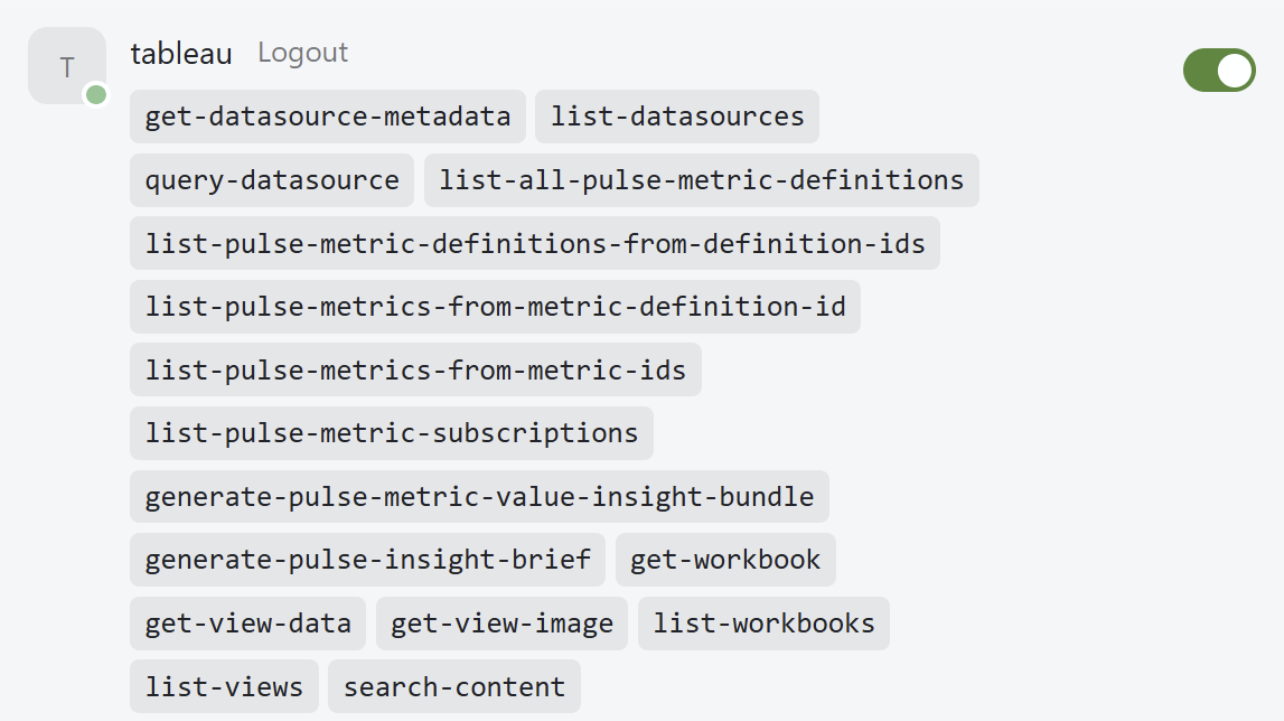
When OAuth is enabled, Cursor will inform the user that they need to authenticate to the MCP server first:

Clicking Connect will prompt the user to sign into the site and once they do, Cursor will be fully connected to the MCP server and display the list of available tools. If you encounter any issues during the sign in process, this suggests a misconfiguration of the OAuth environment variables. The easiest way to debug exactly what is wrong is to use an MCP OAuth debugger like the one in MCPJam. It steps through each individual step of the OAuth process and can help pinpoint issues like a misconfigured OAuth issuer URL or mismatched protected resource URI. Please don't hesitate to create an issue on the repo if a bug is suspected!
Step 3: Ask questions about your data!
For the purposes of verifying the functionality of the MCP server, please temporarily disable any other installed MCP servers that may conflict, and make a basic prompt in your agent.
"List my Tableau datasources" is a simple example prompt that should help verify all the pieces are working.
- If you see the model choose and call the
list-datasourcestool and successfully return a list of the published data sources on your site, all is well! - If the tool returns a 401 authentication error, that means there is an issue with the
authentication configuration.
- Is the PAT expired?
- Is the Connected App enabled on the site?
- If the tool returns some other error, this could indicate a Tableau Server misconfiguration or a runtime issue.
- If you see the model fail to choose or execute the tool, this suggests the model may not support tool calling or the model is weak.
Additional considerations
Embedded authorization server
To support OAuth, the Tableau MCP server ships with its own "embedded" authorization server, responsible for issuing access and refresh tokens to MCP clients. It uses the authentication mechanisms provided by Tableau Server and configured at the Tableau site level to ensure access is limited to users who can already access the Tableau sites. When OAuth is enabled on the MCP server, the Tableau user context is securely stored within the access token issued to MCP clients so user capabilities and privileges persist end-to-end.
The embedded authorization server is currently the only supported authorization server for use when self-hosting the Tableau MCP server for Tableau Server customers. This has no impact on the authentication configuration of the Tableau Server itself. For example, if your Tableau Server is configured to require OpenID Connect via an external identity provider, this doesn't change. The embedded authorization server only protects the deployment of Tableau MCP, not Tableau Server.
There is one limitation of the embedded authorization server that is worth mentioning. The refresh
tokens issued to MCP clients are currently stored in the memory of the Tableau MCP server process.
These are used when an agent determines the access token will soon expire and requests it be
refreshed using the refresh token. The agent provides the refresh token, the authorization server
ensures it exists in its memory and is valid for the client, and reissues a fresh set of access and
refresh tokens to the client. In the event the Tableau MCP process is stopped or restarted, all
these refresh tokens are effectively forgotten so if a client later attempts to exchange a refresh
token for a new access token, it will fail and the user will need to reconnect their client. Clients
may or may not automatically prompt the user to re-authenticate, potentially causing some friction.
Access tokens expire after 1 hour by default but can be extended to 30 days using the
OAUTH_ACCESS_TOKEN_TIMEOUT_MS environment variable. We are working internally to improve this, but
for now please be aware. See
Add support for persistent storage of refresh tokens and authorization codes · Issue #265 · tableau/tableau-mcp
Passthrough authentication
Passthrough authentication is a special mode that enables enterprise gateway or proxy deployments where users authenticate via Kerberos, OIDC, or other mechanisms and the proxy forwards a valid Tableau REST API token to the MCP server. When enabled, authentication to the MCP server acts similarly to the Tableau REST APIs. The same X-Tableau-Auth header used to authenticate to the Tableau REST APIs can also be used to authenticate to the MCP server.
For more information and precautions, see Passthrough Authentication | Tableau MCP.
ENABLE_PASSTHROUGH_AUTH=true
Disable service temporarily
If you need to temporarily disable the service for any reason, you can set
BREAK_GLASS_DISABLE_GLOBALLY
to true. The MCP server will continue to handle requests but all tool calls will return an error.