
Getting Started

This guide walks through getting started with Tableau MCP to integrate Tableau data with AI tools for natural language data analysis and querying. These instructions are written for a general audience and work equally well with published datasources located on either Tableau Cloud or Tableau Server.

Tableau MCP GitHub project links:

Overview

Tableau MCP is an open source GitHub project that uses the Model Context Protocol standard for simplifying agent-to-Tableau communication, enabling users to bring their Tableau data into AI tools by leveraging VizQL Data Service, Metadata API, and other Tableau APIs.

This guide walks you through everything you need to explore Tableau data via MCP using Claude Desktop (the free version is all that's needed). Once it's running you'll be able to explore data like this example:

Claude Desktop

Basic Architecture

In this setup, Tableau MCP runs locally on your computer as a separate process that Claude Desktop will communicate with directly using its standard input/output streams.

Setup

Identify Tableau Server or Cloud Site

Tableau MCP works with published data sources on Tableau Servers or Tableau Cloud Sites.

To connect with your data, you'll need to create a Personal Access Token (PAT) to use with MCP.

info

If you don't already have a Tableau Cloud/Server site, it's easy to get a free one for testing by joining the Tableau Developer Program. Click the join button and follow the steps.

Login to your site, then click your profile in the upper right to bring up My Account Settings.

Scroll down to Personal Access Tokens and create a new one. You can use any token name but something memorable like "mcp" is suggested to make later configuraton easier. Make sure to copy and save the value because it's only shown this one time. (Also, be aware that Tableau PATs will expire after 15 days of inactivity, so you may need to periodically create a new one.)

Personal Access Token Config

warning

Keep your PAT safe and don't share with anyone or check into source control. Pay attention to the expiration date. You can also return here to revoke the token when you no longer need it.

Make note of these 4 values which you'll need later for the MCP configuration:

Identify a Published Data Source

Tableau MCP works with both Tableau Server and Tableau Cloud data sources with these prerequisites:

If you don't have a published data source, you can create one like Superstore or by uploading a CSV/Excel file and creating a published version of it.

To use a published data source with MCP, you just need to refer to it by name in the AI tool (like Claude). See below for examples.

Install Claude Desktop

Start by downloading and installing Claude Desktop (Mac or Windows). Claude requires an account, so you'll need to sign up with your email address. A free account should suffice for simple testing with a limited number of messages (details: Getting started with Claude | Claude Help Center). If you run into problems exceeding the free limit, you can upgrade to Claude Pro for $20/month.

Install Tableau MCP Extension

Tableau MCP can be run several different ways. Perhaps the easiest is running the pre-built Claude Desktop Extension.

Option 1: Install from Claude Marketplace

  1. Open Claude Desktop
  2. Go to Settings | Extensions
  3. Click on Browse Extensions
  4. Search for Tableau and install it

Option 2: Install latest from Tableau MCP GitHub

  1. Go to the Releases page
  2. For the newest release, under Assets, find and download the .mcpb file (it will be named something like "tableau-mcp-v1.15.0.mcpb")
  3. Open Claude Desktop
  4. Go to Settings | Extensions
  5. Drag and drop the .mcpb file onto Claude Desktop

Once the extension is installed, you'll be prompted to configure Tableau MCP:

  • SERVER
  • SITE_NAME
    • Cloud: required, for example techandprod
    • Server: site name, or can leave blank to use the default site
  • PAT_NAME (e.g. mcp)
    • The name of the PAT you created in the Tableau site settings
  • PAT_VALUE (value copied after PAT creation above)

When everything is configured it should look like this:

Claude Desktop Extension configuration

Using Claude with MCP

List Datasources

To verify that Claude is talking to Tableau correctly, start a new chat and try a question like "list some of the Tableau datasources". Claude will show a pop-up asking for permission to run the list-datasources tool, then you should see a result like this:

List Datasources Result

For any datasource it lists, you can ask it to explain it in more detail and even sample some data if you like.

Superstore

For large, shared sites, there may be a ton of "Superstore" datasources. To help narrow down to a specific one, include additional qualifiers in your prompt, like the name of the user who owns it.

List Datasources With Owner Result

To peek under the hood and understand how the AI client (Claude) and Tableau MCP are communicating, you can click to expand any of the tool calls it makes. For example the query above used the List Datasources tool with a search by name and owner name:

List Datasources Tool Call Trace

In the same chat session you can go deeper and explore the selected data. Asking the model to explore the data and propose questions is a great cheat code:

Data Exploration Result 1

Data Exploration Result 2

Here's another example question along with a request to show me visually:

Data Exploration Result 3

Claude also created a simple React page to visualize everything, per my request:

Data Exploration Visualization

Claude calls these Artifacts and because they are single-page web content they can be published and shared. For example this one is live here: discount-profit.jsx | Claude.

Claude can also create other kinds of visualizations directly or by creating code snippets to do the same.

Explore Further

Follow along and share ideas with the Tableau MCP team by creating issues or discussions on the repository. You can also join the Tableau Developer Platform and reach out in the #tableau-ai-solutions Slack channel in the Tableau #DataDev workspace.

The MCP project is still under development and new tools (Tableau APIs) are being regularly added. See the README at https://github.com/tableau/tableau-mcp for the latest.

We used Claude Desktop in this example, but any MCP client should work. People on our team have used Cursor, VS Code, and other tools. The configuration for most of these follows the same pattern as used above ("mcpServers" defined in JSON). The Tableau MCP documentation has more details about different ways to configure and run, including all of the optional environment variables.

If you try a tool that doesn't quite work, please reach out to the team to let us know.

Troubleshooting

Here are some common issues that might come up – and how to solve them. The examples and screenshots are from Claude Desktop but can apply similarly with any AI tools.

401 Unauthorized

When the AI client is using tools through Tableau MCP, it might fail and report a "401 Unauthorized" error.
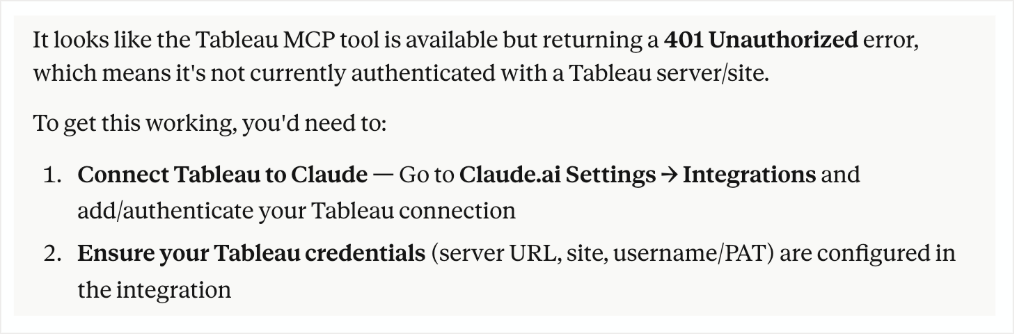
401 Unauthorized Error

Solutions:

  • Double-check that the server URL and site are correct
  • For PAT_NAME, ensure you are providing the name of the PAT, not your username or email address
  • Generate a new personal access token (PATs can expire after 15 days if not used)

403 Forbidden

For Tableau MCP to work, the user must have the "API access" permission enabled. In cases where the user does not have that permission, a "403 Forbidden" error can occur.
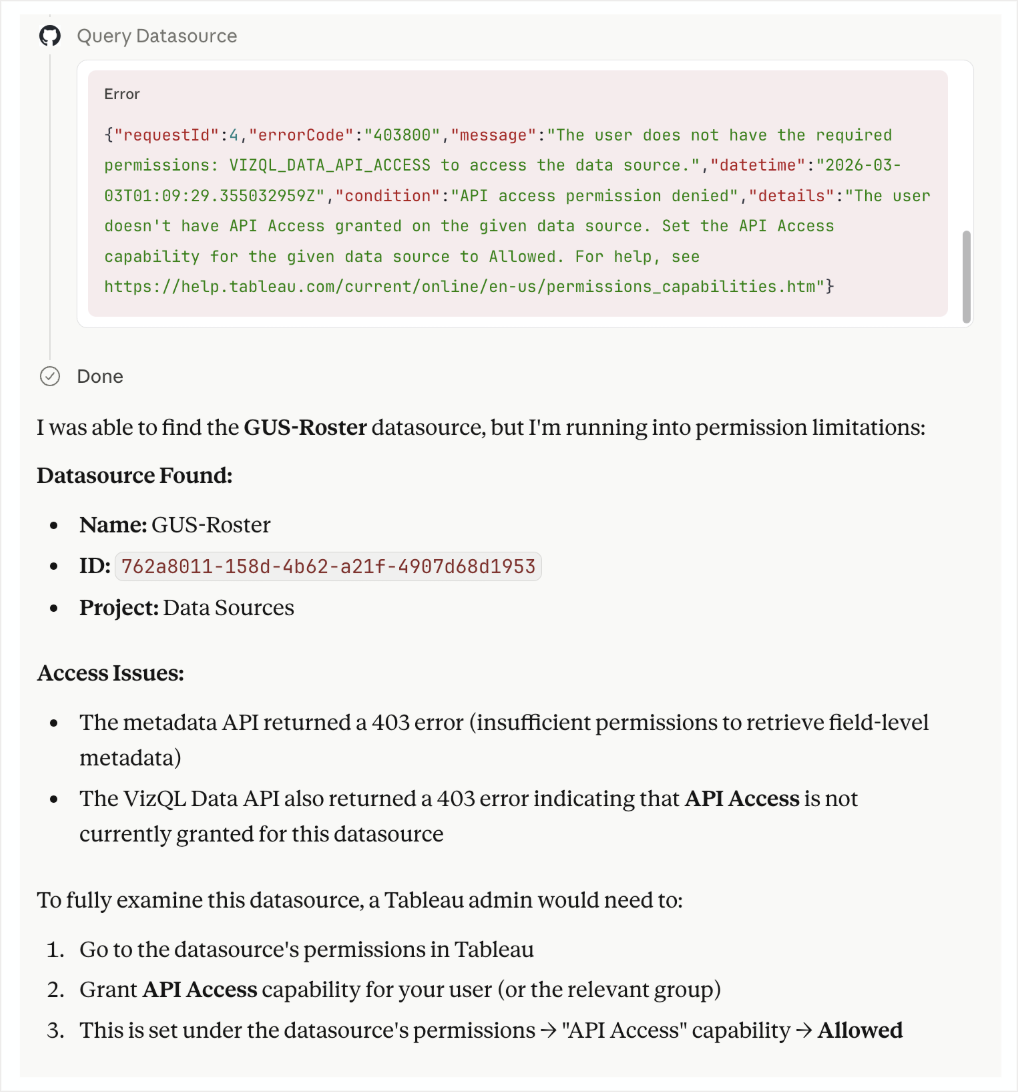
403 Forbidden Error

Solution:

  • Grant API access to your user for that specific data source
  • More likely, request that the admin or project owner do that for you