tableau-app-msft-teams
FAQ
General
How does this app work?
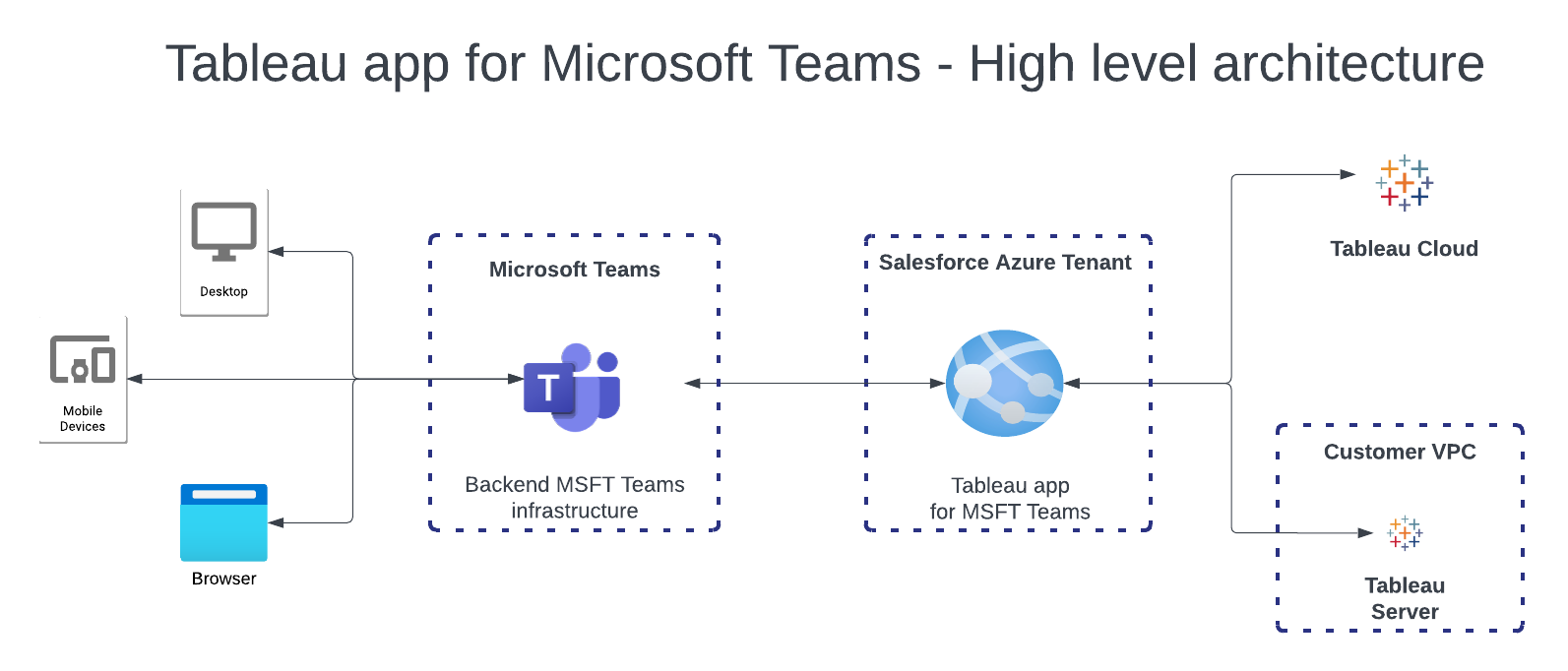 Microsoft provides an SDK for developing apps that run within the M365 suite of products. The model is for Microsoft partners to develop and host these M365 apps, which are surfaced within the Microsoft stack. The Tableau app was developed using this SDK, and runs within Teams, PowerPoint, and Word. When you open the Tableau app in Teams or Office, Microsoft reaches out to our app in order to dislay the UI. Our app communicated with Tableau Cloud or Server, which lets end users consume Tableau content directly in Teams and Office.
Since Tableau Cloud is a publicly accessible service, there are usually no extra steps required to ensure the Teams app is able to communicate with Tableau Cloud. Tableau Server environments are often locked down behind a firewall, though.
What if my Tableau Server is behind a firewall?
In order to fetch content from your Tableau Server, our app service needs to be able to reach it via HTTP requests. This means your Tableau Server will need to be accessible to the public internet. Typically enterprise security will not be OK with allowing incoming traffic from anywhere, so instead create an ingress rule to allow incoming HTTP requests from the below IP ranges:
4.152.0.0/15
20.2.0.0/16
What if my Tableau site is using Tableau Cloud IP Filtering allow list?
In order to fetch content from your Tableau Cloud site, our Teams app service needs to be able to reach your site via customer-allowed source IPs or IP ranges. This means your team will need to request that Azure (source) IP ranges be added to the site’s IP Filtering (IPF) allow list. While IPF is in preview access, you will need to work with your AE/CSM to do this. In the future this is planned to be self-service. This is required in order for the site data to be accessible to the customer Teams Server in Azure cloud. To continue to use Tableau Cloud IP Filtering on your site, please request that the incoming traffic from Azure below Azure IP ranges be added to your allow list:
4.152.0.0/15
20.2.0.0/16
How does this app authenticate to Tableau?
The app gets the logged in Teams’ user’s email address, and uses a Connected App to authenticate as that user. This means your email address or userPrincipalName in Azure AD must match the username in your Tableau site.
How does security work when sharing metrics/vizzes?
There are several ways you can share a viz or pulse metric with other users.
- Copy/paste a link to the viz/metric
- Use the “search” message extension while writing a message
- Clicking the Share in Teams button from the personal app
Before the content is shared, the Tableau app automatically converts the viz/metric URL into an adaptive card with a preview image of the viz/metric. This is created using the context of the current user (not who you are sharing with). This means there are scenarios where you could share a metric/viz with someone who does not have permissions to view that content in Tableau.
In this scenario the other user will see the preview image (similar to taking a screenshot and sharing the image) but if they click the “Open” button from the card, the Personal App will display an error saying that viz/metric could not be found. There’s no way to say 100% that this is a permission issue (it could have been moved or deleted), so the wording of the error message has to be a bit vague.
Does every user need to set up their Tableau site?
No, when the Tableau app first loads it looks for any connected app details associated with the Teams tenant. If some sites have already been configured, the Tableau app will use that information to authenticate the logged in user. In other words, once an admin sets up the site config, all other teams users should be able to leverage it (assuming they are licensed in Tableau as well)
Is the Tableau app supported in GovCloud?
No, currently the Tableau app for Teams is supported only on Commercial versions of Teams. Please add your vote to this Idea posted on the Salesforce IdeaExchange to voice your support for adding Azure GovCloud as a supported environment for the Tableau App for Microsoft Teams.
What about push notifications from Tableau to Teams?
This functionality is on our roadmap, but not currently available.
Setup
I’ve installed the addin for Office, but I’m getting an error message when using it in Office
Could not retrieve access token from Microsoft Office API: API is not supported in this platform.
The accessToken the Office addin is trying to get, lets us authenticate to the MSFT Graph API and fetch the user’s Entra profile. We use this information to sign them into Tableau automatically. This error will appear if the app was installed using a Setup Policy from the Teams Admin Center. These setup policies deploy the app only to Teams, so when Office tries to get an accessToken for your user it’s failing because the app isn’t deployed for Office. Follow the setup guide to deploy the app for Office. If you installed the Tableau app through the M365 Admin Center’s Integrated Apps page, you may need to find the app and check for an Update available or Action required banner. This would allow you to re-consent to any newly added permission scopes.
I installed the Tableau app and specified a setup policy to auto-install for users, but I don’t see it in my Teams client yet. What’s going on?
The push from the Teams admin center to Teams clients is known to take a while. In fact, it can take up to 24 hours before your changes show up in the Teams client.
For Office addins, this can take even longer. It can take up to 72 hours before the addin appears for end users.
End users
What if I’m unable to consent to the OAuth permissions?
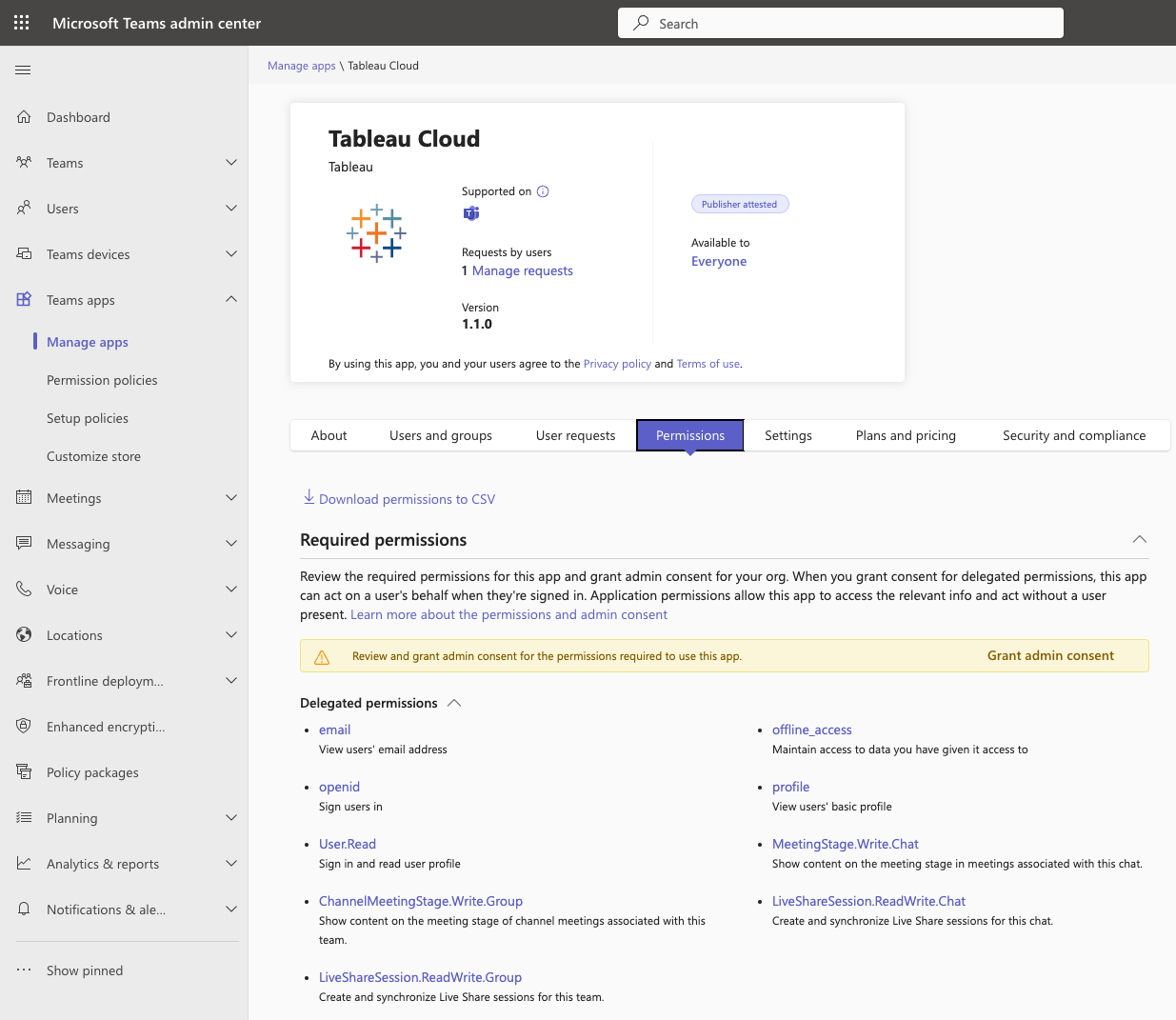
Some organizations lock down app permissions more than others. Some customers may need to have their Teams admin grant admin consent, in order for end users to use the app. This can be done in the Microsoft Teams Admin Center. Navigate to the Manage App page and find the Tableau Cloud app. Switch to the Permissions tab and dlick the Grant admin consent button.
Managing the app
I’ve deleted the connected app details from Tableau Cloud/Server, and now I can’t login to the app
The Tableau app for Teams stores your connected app details in a database, and uses them when it first loads to authenticate you to Tableau Server/Cloud. If the connected app details are disabled or deleted from Tableau Cloud/Server, the Teams app will no longer be able to authenticate you and just give you a login error message. This can lead to getting locked out of the app, if you configure it for one site and then delete those connected app details later on.
From the app’s perspective, we want to ensure only Site/Server Admins can add/remove connected app details so if we can’t verify your identity then we shouldn’t provide a way to delete the connected app details from our backend. If you need us to delete the connected app details for your site, please submit a support ticket and provide the full URL to your Tableau environment and provide written consent from your Tableau Admin for us to remove your connected app details.