tableau-app-msft-teams

Setup Guide
Prerequisites
In order to use the Tableau App for Microsoft Teams, you need a few things:
- Tableau Cloud or Tableau Server - You will need to be an admin on your Tableau Cloud site or Tableau Server. We use connected apps to provide a single-sign on experience, so you will need a Tableau admin to set that up. If using Tableau Server, there are some additional considerations:
- Tableau Server must be running version 2023.1 or newer.
- The Tableau app communicates with Tableau Server via REST API calls. If your Tableau Server is behind a firewall, you must provide access from the Tableau teams app (
tableau-ms-teams-prod-gycea7csh5hsbfh5.a02.azurefd.net). If you require IP ranges for allow-listing incoming HTTP requests, please add the below CIDR blocks to your allow-list:4.152.0.0/15 20.2.0.0/16 - The Tableau app uses the Embedding API to embed interactive dashboards from Tableau Server. So your end users will need to be able to access Tableau Server in the same way they access Microsoft Teams. The specific requirements will vary depending on your implementation of Microsoft Teams, for example if users must be on the VPN to use Teams then their Tableau access needs to match that. Or if they access Teams through the public internet, then Tableau would also need to be accessible through the public internet. Keep in mind Teams also has mobile apps, so the users may try and access Tableau Server from their mobile devices as well.
- Microsoft E365 Subscription - The Tableau app is built to work within Microsoft Teams, so you will need an E365 subscription. Depending on your organization’s policies, you may also need to be an E365 admin in order to install the app.
- Microsoft Teams and/or Office - In order to use the Tableau app, you will need access to Microsoft Teams and/or Office. You can use either the Desktop app or login to M365 using your web browser.
- User mappings - The end users of the Tableau app will already be licensed for Microsoft Teams/Office, but they will also need licenses for Tableau. Additionally, the end users’ Entra profiles (used by Teams) must contain an attribute that matches the user’s Tableau username (for single-sign on)
Step 1: Install the app for Teams and/or Office
The steps to install the app depend on whether you are using Tableau Cloud or Tableau Server.
Tableau Cloud customers can install the Tableau Cloud app for Teams in the Microsoft Teams Marketplace.
Tableau Server customers will need to take a few extra steps to complete the installation. This is because apps in Microsoft 365 are required to specify an allowlist of URLs they can interact with. Since Tableau Server customers will all have different hostnames for their Tableau Server environment, there’s no way for us to account for this in the app from the Marketplace.
Tableau Cloud
The Tableau Cloud app can be found in the Microsoft Marketplace. The Tableau Cloud app includes a Teams app and Office addin, so there are a few different installation paths depending on what you want to provide for your end users.
Option A: Teams and Office
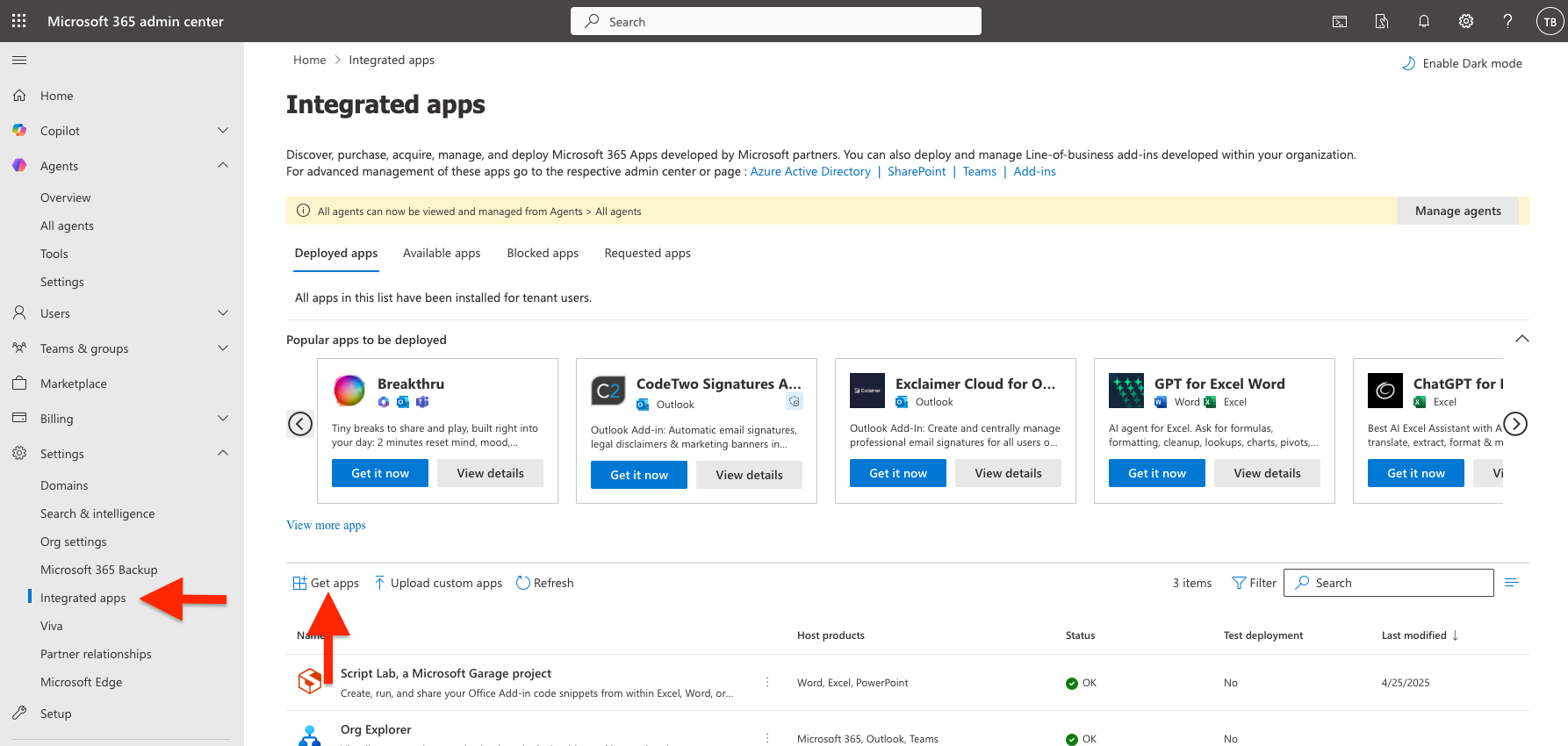
The simplest installation path is to enable your users to use the Tableau app in both Teams and Office. Login to the Microsoft 365 Admin Center and navigate to the Integrated Apps page. Click the Get Apps button and search for the Tableau Cloud app in the Marketplace.
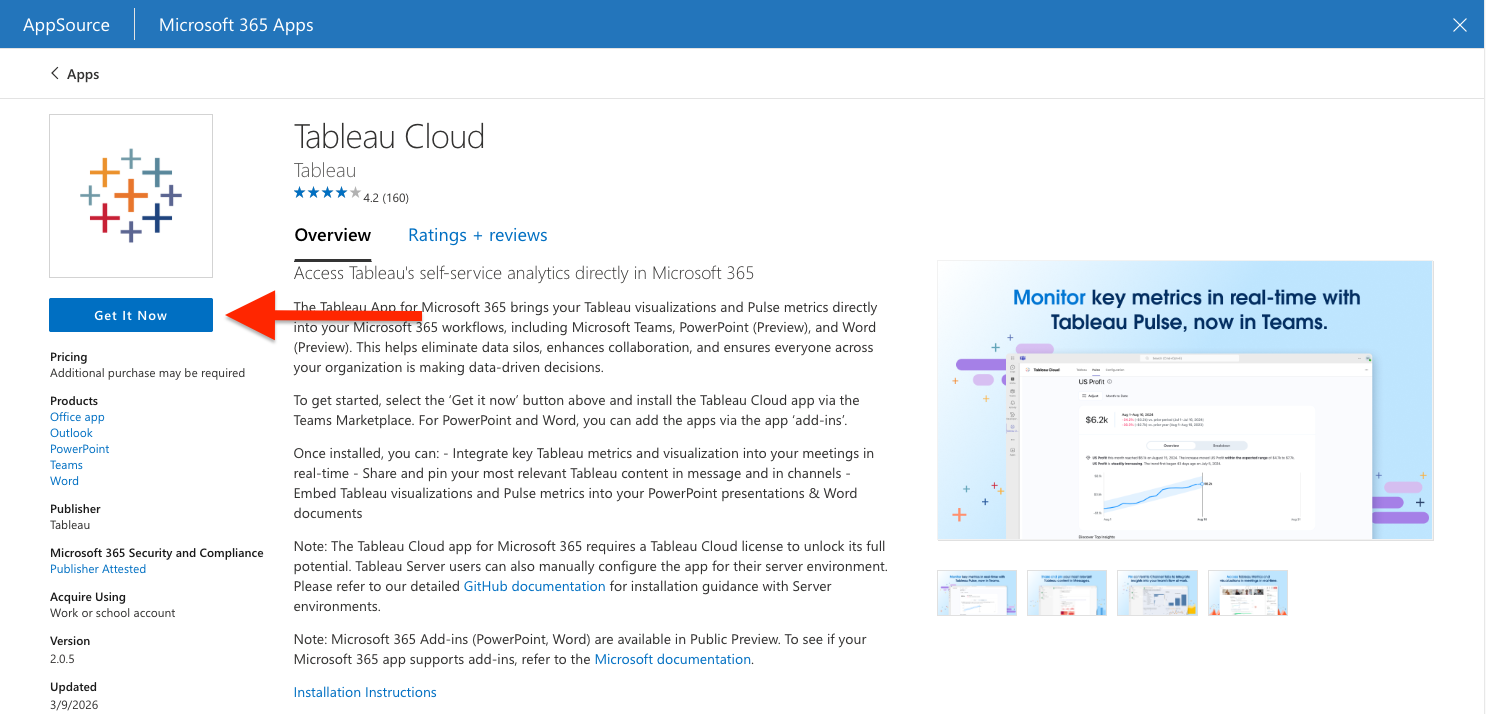
Click the Get it now button to start the installation process
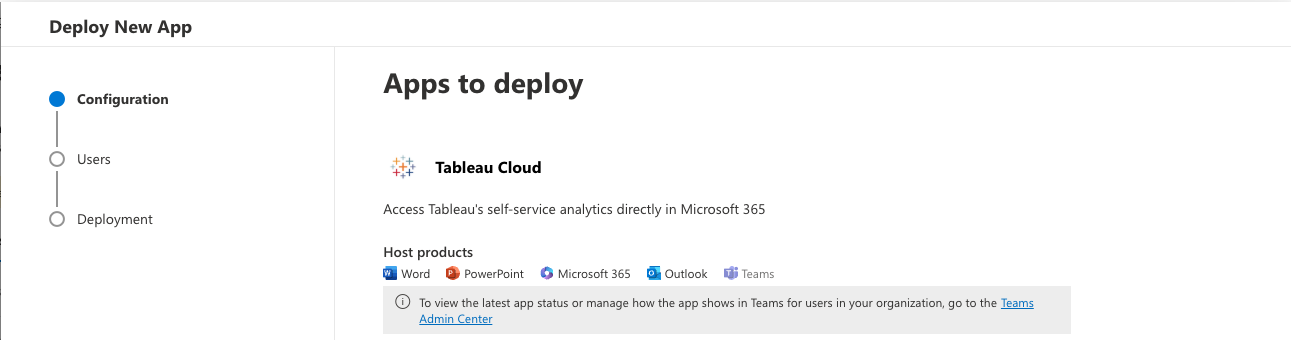
Confirm you see the icons for Teams, PowerPoint, and Word in the list of host products
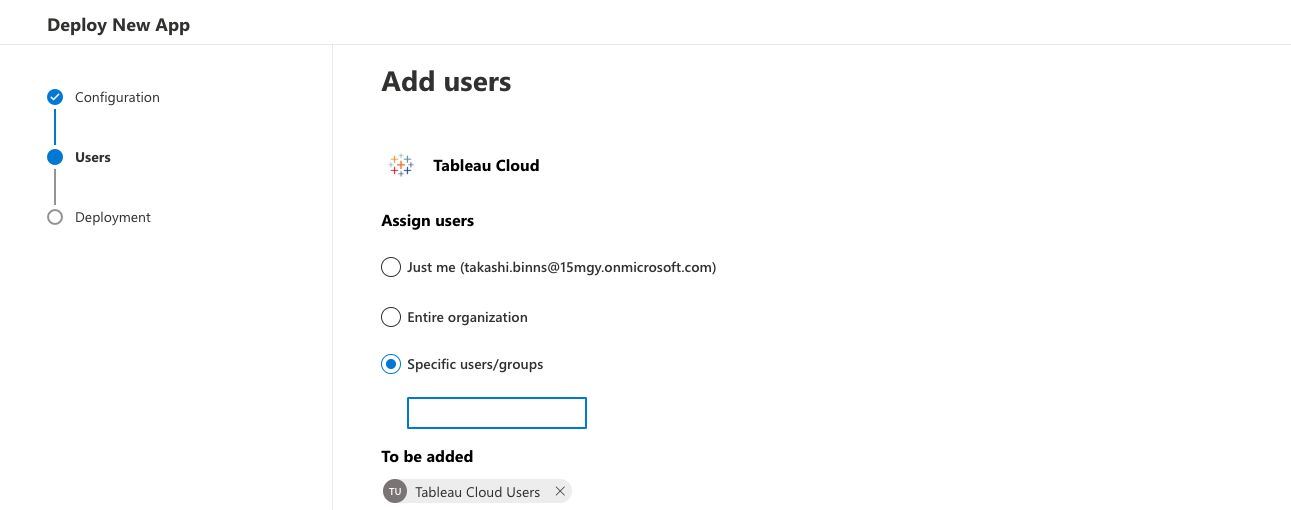
Specify which users/groups the app will be installed for
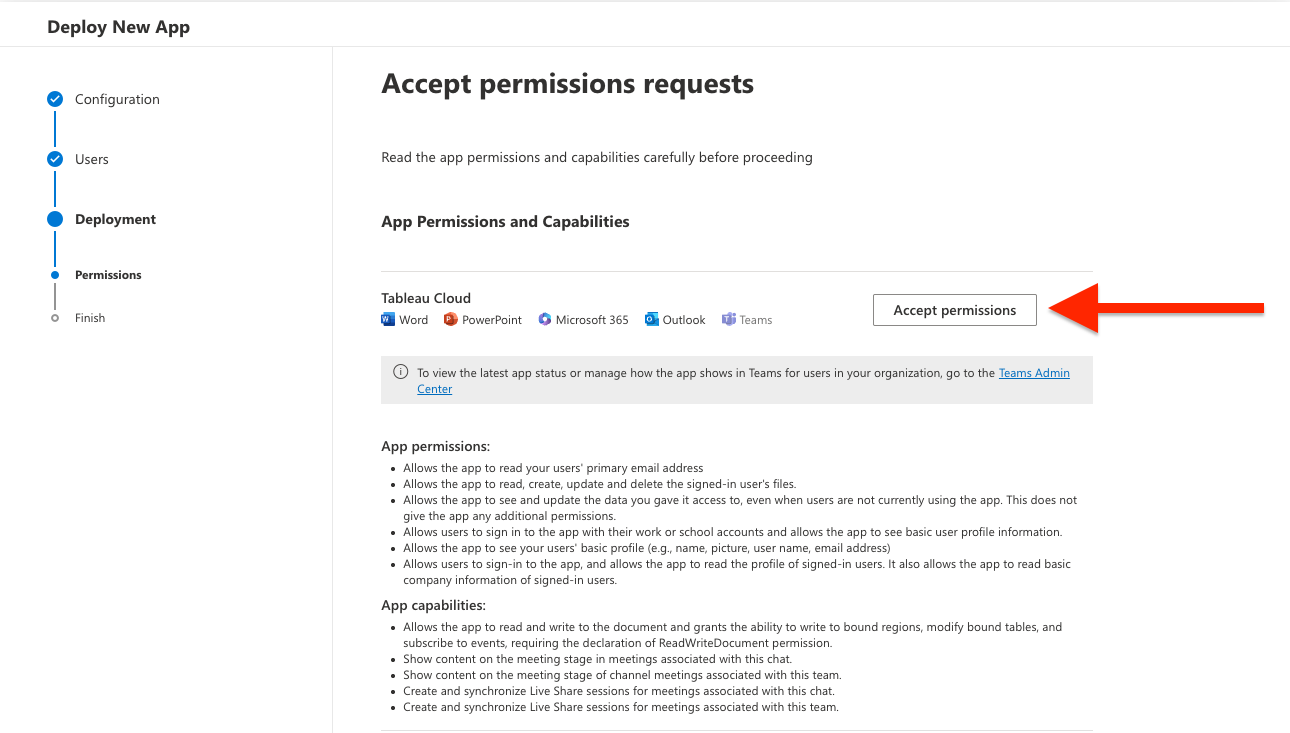
The Tableau app requires consent to specific permissions in order to work. More details about app permissions can be found in the FAQ. After consenting to the required permissions, continue to the last page and then click the Finish Deployment button.
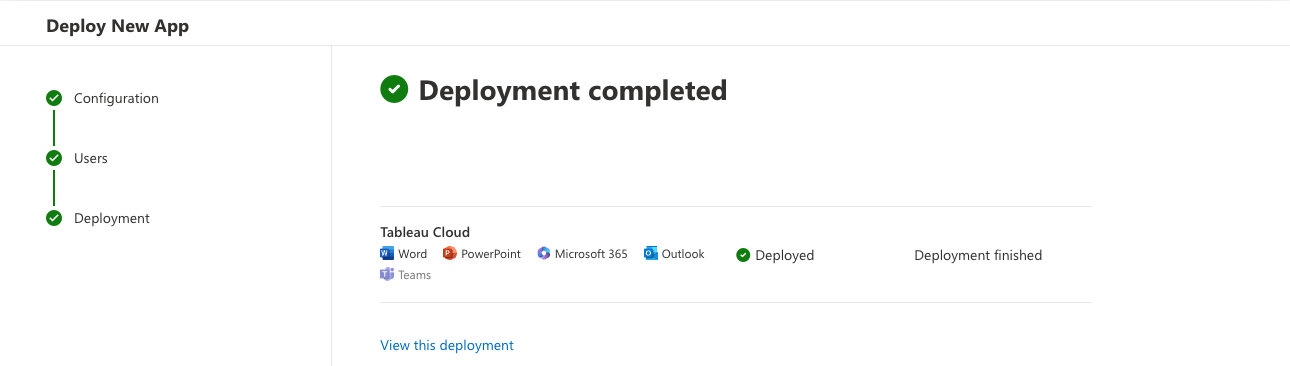
You should see a confirmation page, showing the deployment as complete1.
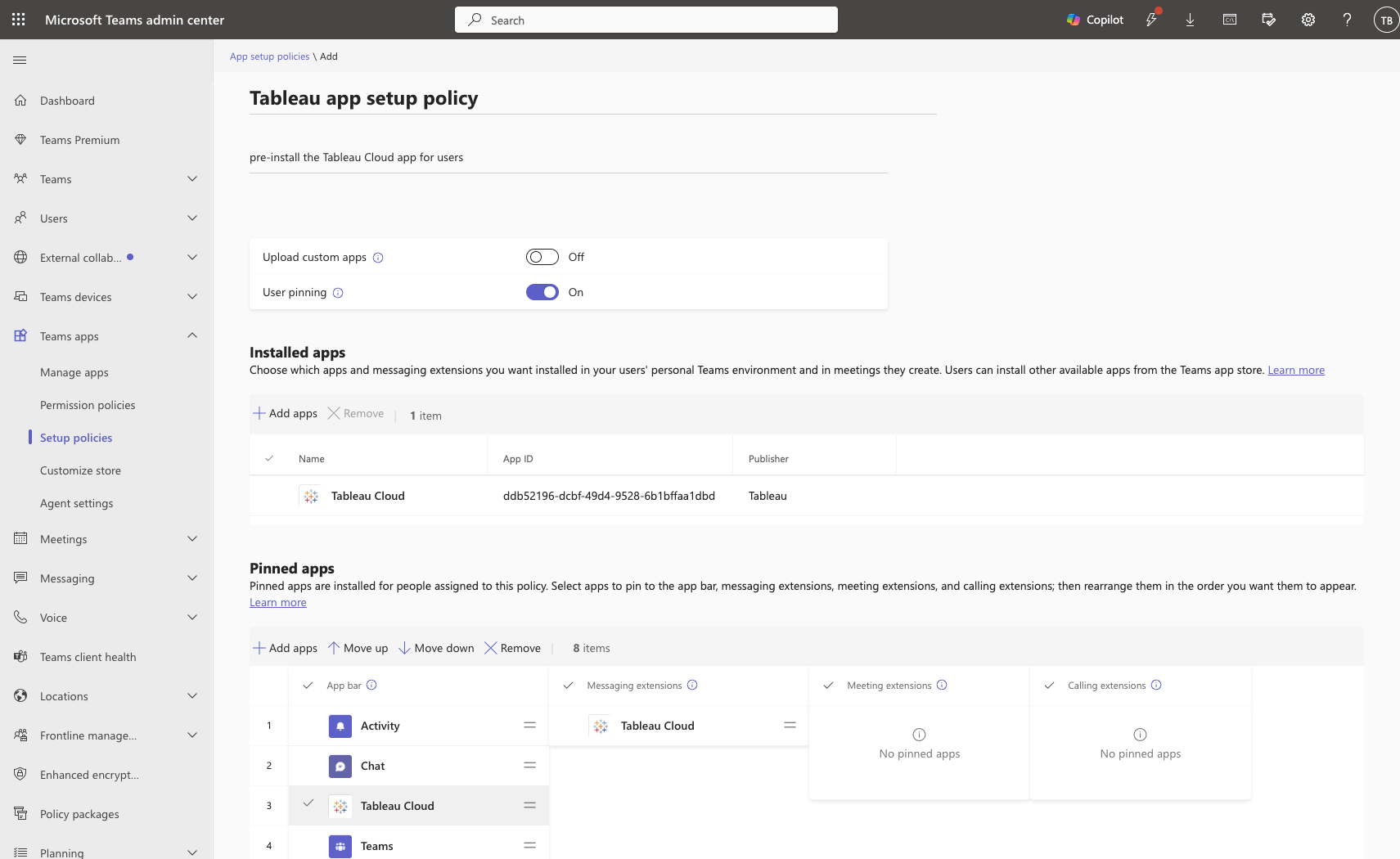
Optional: Auto-pin the app in Teams
Though optional, we recommend creating a Setup Policy in the Teams Admin Center to force the app to be installed automatically within Teams. You can also ensure the app is pinned to the left-side panel of Teams, making it easier to find for users.
Option B: Office only (no Teams)
If you want to use the Office addin exclusively, start by following the same steps from Option A. You will also need a User group that has no members (or at least members that are OK to see the Tableau app in Teams). Once this is done, login to the Teams Admin Center and navigate to the Teams Apps -> Manage Apps. Change the availability of the app to your empty group.
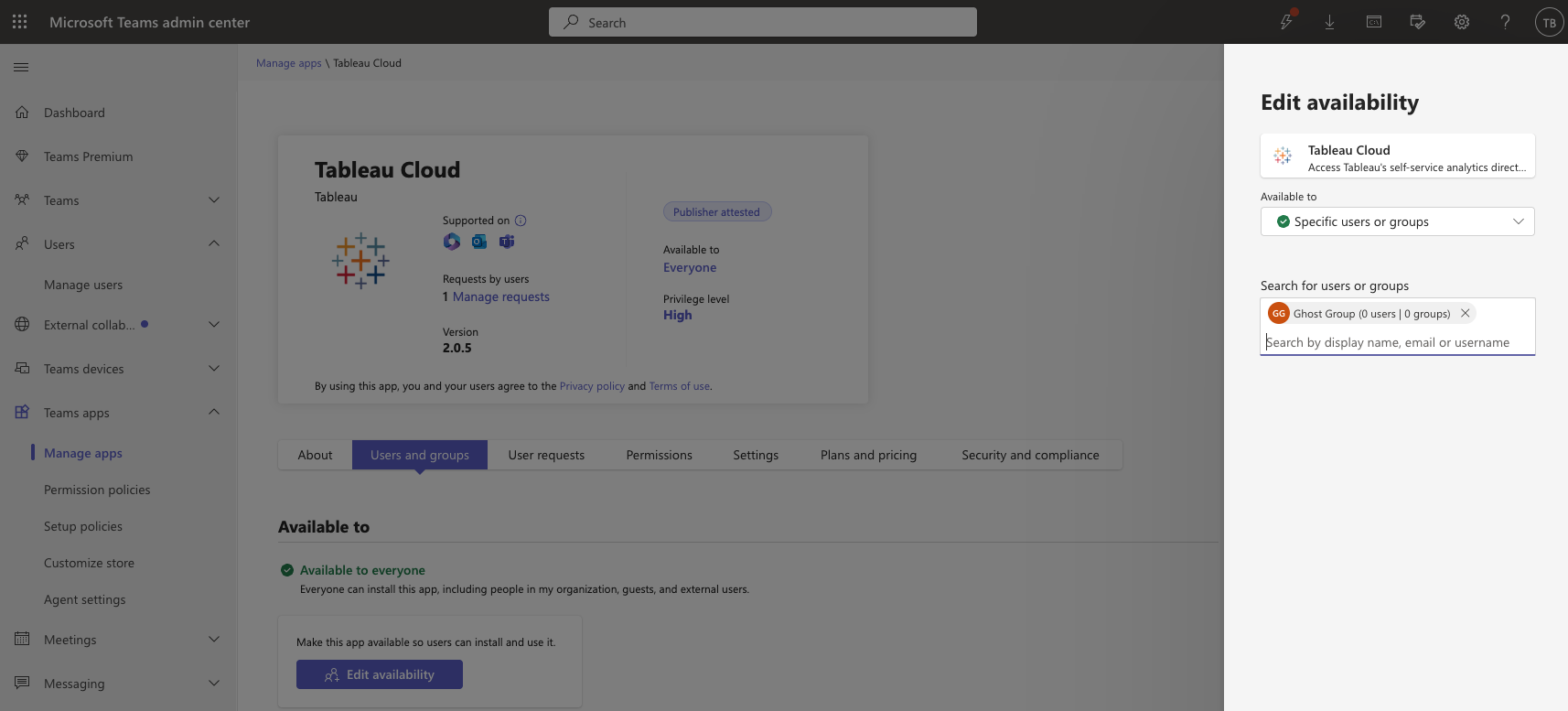
By creating this restriction in the Teams admin center, users will not be able to see the app in Teams but will retain access in Office products. Do NOT set the app availability to No one because that setting will carry over to Office as well.
Option C: Teams only (no Office)
If you want to use the app exclusively in Teams, do not follow the steps from Option A. Instead, use the Teams admin center to install the app using a Setup Policy. Login to Teams Admin Center and navigate to Teams Apps -> Manage Apps page. This is where you can manage what apps are available for users to install. Search for the Tableau Cloud app on this page, and ensure the app is available for use (either Everyone or Specific Users/Groups)
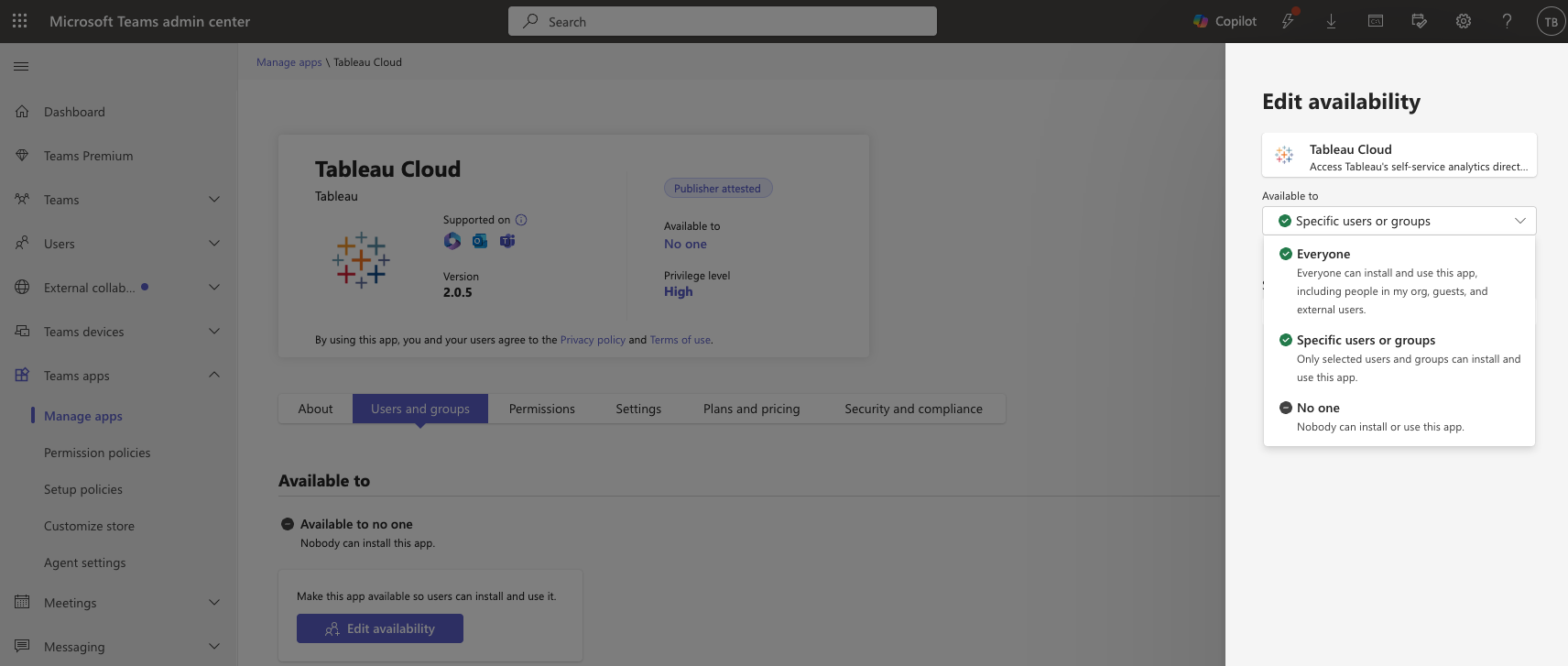
Next, create an app Setup Policy, which will pre-install the app for users in Teams. By using an Setup Policy, the deployment impacts only Teams and will ensure the app does not appear in Office.
Option D: User installs directly from Teams or Office
If a user installs the Tableau app from the Marketplace in Teams, it will require the user to consent to the requirement permissions. Some organizations allow this, other explicitly block the ability for users to consent to app permissions. In this case, follow the instructions in Option A to have a Microsoft admin deploy the app and grant the permissions.
If the user is able to consent to app permissions on their own, it will work within Teams. However, if users attempt to user the app in Office they will get the below error message.
Could not retrieve access token from Microsoft Office API: API is not supported in this platform.
This is because Office addins requires additional permissions to be set before they can be used. To resolve this, have a Microsoft admin complete the steps from Option A.
Updating existing deployments
If you have already installed the Tableau app from the marketplace, it should continue to work as expected. If you installed it via the Integrated Apps section of the M365 Admin Center, find the Tableau Cloud app under the list of Deployed Apps. Look for a notification to upgrade the app or accept new permisions. Version 2 of the Tableau app includes a new permission, File.ReadWrite, which allows users to add images of Tableau content to their presentations and documents.
If you installed the Tableau app using a Setup Policy, then you will need to follow the steps from Option A. This will ensure the proper permissions are granted to the app, so that it can work in Office products as well as Teams.
Tableau Server
Step 1.1: Get the Tableau App manifest
Download the manifest (zip file) titled ‘tableau-server-app-for-teams.zip’ from this repository. Before we can use it though, we’ll have to make some edits. Unzip the file, and open up manifest.json. Search the manifest.json file for all occurrences of *.online.tableau.com. Replace this with the hostname of your Tableau Server environment. For example, if your Tableau Server is found at https://analytics.company.com then you would use analytics.company.com as the new value. There should be two occurrences that need to be changed:
-
composeExtensions.messageHandlers.value.domains
-
validDomains
Once the changes have been saved, re-create the zip file and use that as your app package file. The zip file should not contain any folders within it.
Step 1.2: Install the Tableau App for Teams
Login to the Teams Admin Center and navigate to Teams Apps -> Manage Apps page. This is where you can manage what apps are available for users to install. Click on the Upload new App button and upload the manifest zip file from Step 1.1.
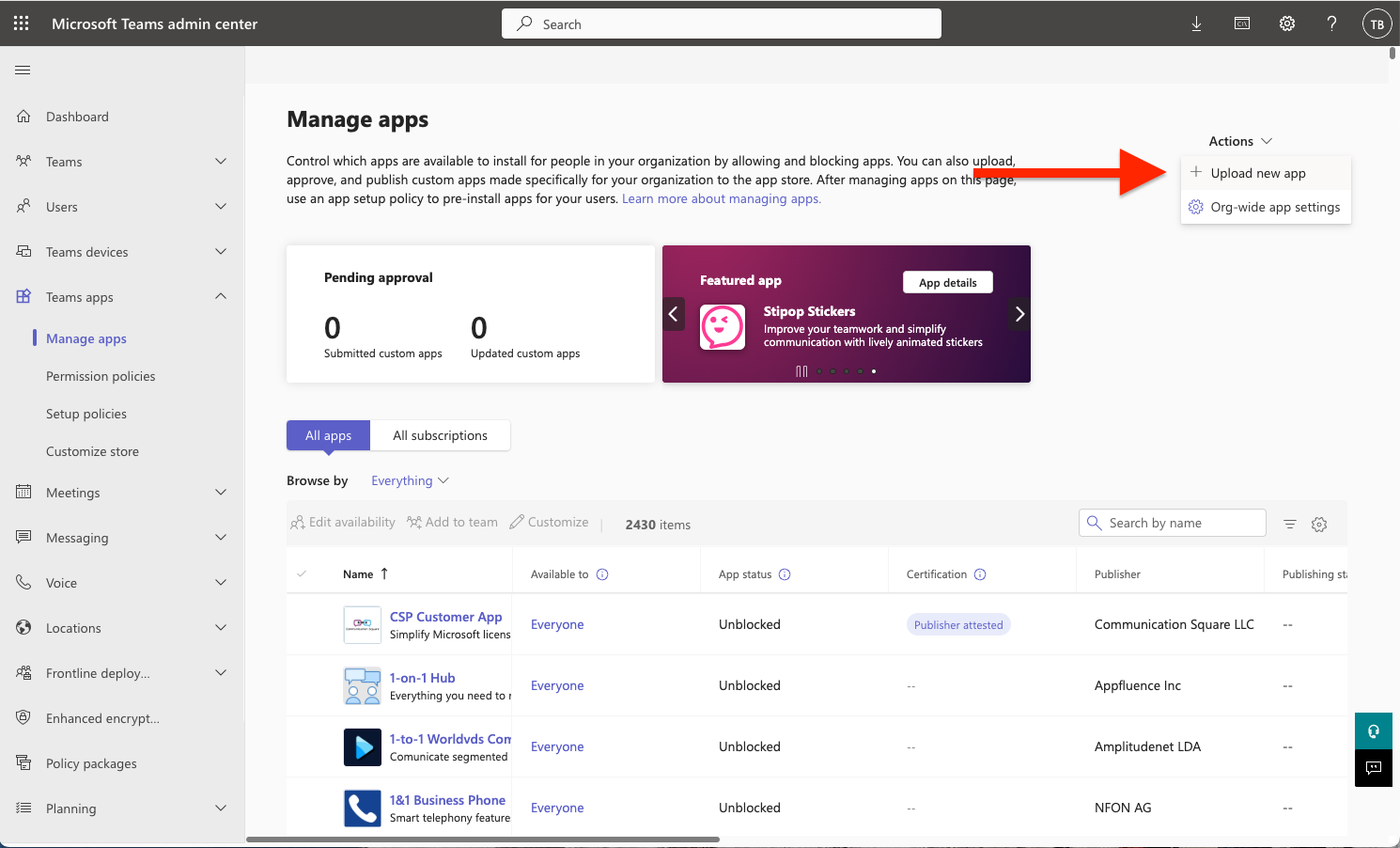
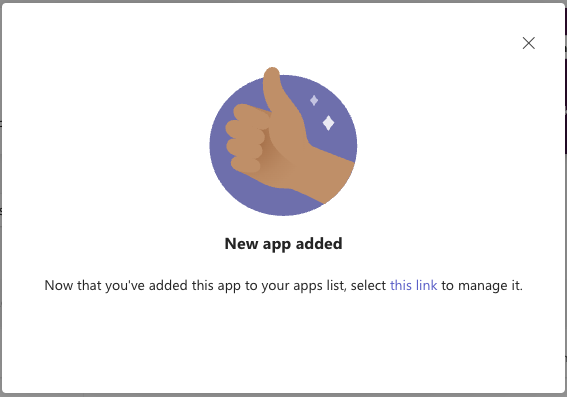
Once installed, you should get a link to manage the app.
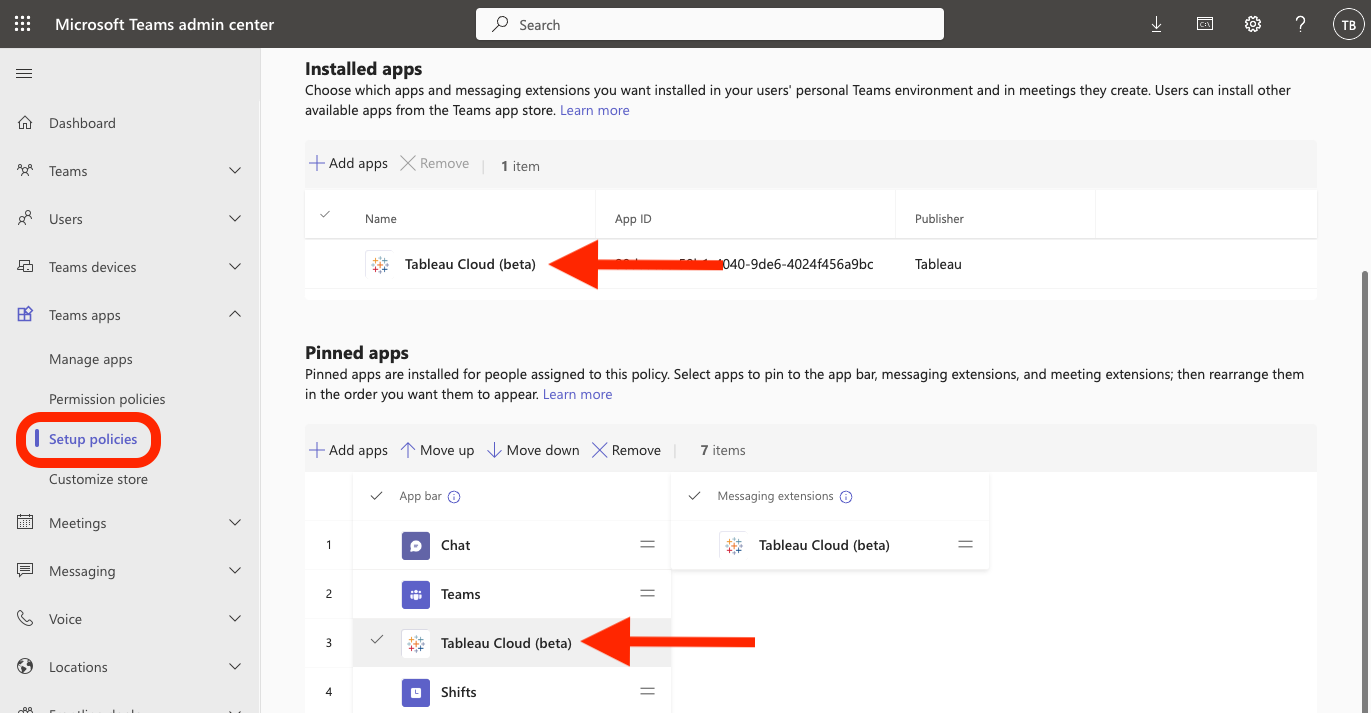
It may take up to 24 hours, but now the Tableau app will be available for users to install in Teams. As an optional step, you may want to auto-install the app for all (or a subset) users. To do this, use the Teams admin center to navigate to Teams apps -> Setup policies. Create a new policy and click the Add apps button under Installed apps. Search for the Tableau app and click Add. You may also want to “pin” the Tableau app in your users’ left navigation. Once you’ve made your selections, click the save button. Again, it may take up to 24 hours for these changes to reach your end users.
Step 1.3: Install the Tableau App for Office
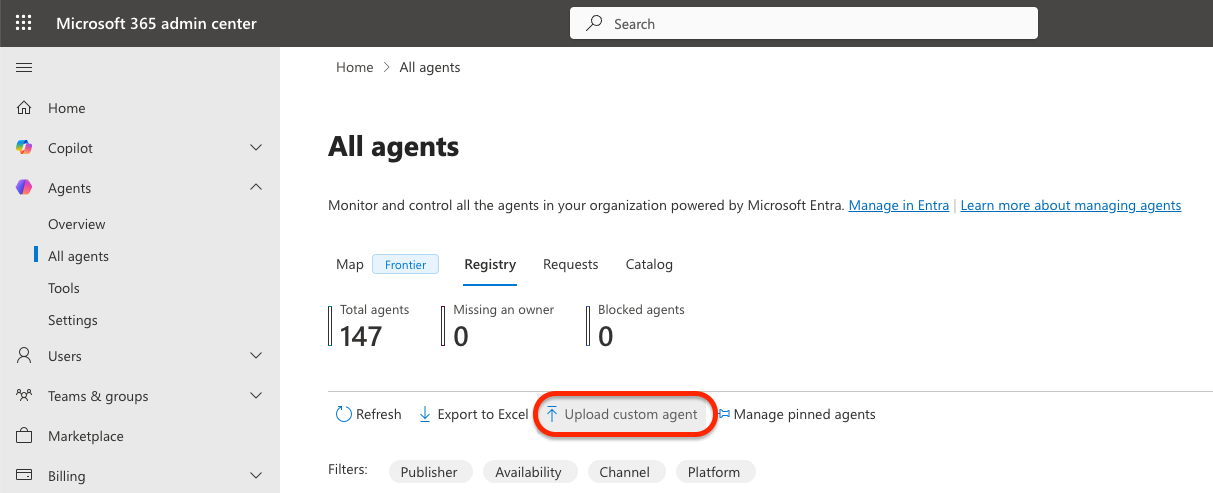
Even though the Tableau app is a single app package that supports both Teams and Office, Microsoft has different deployment paths for custom apps in Teams and Office. If you want to enable your end users to use the Tableau app in Office, open the Microsoft 365 Admin Center and navigate to the Agents -> All Agents tab. Click the Upload Custom Agent button.
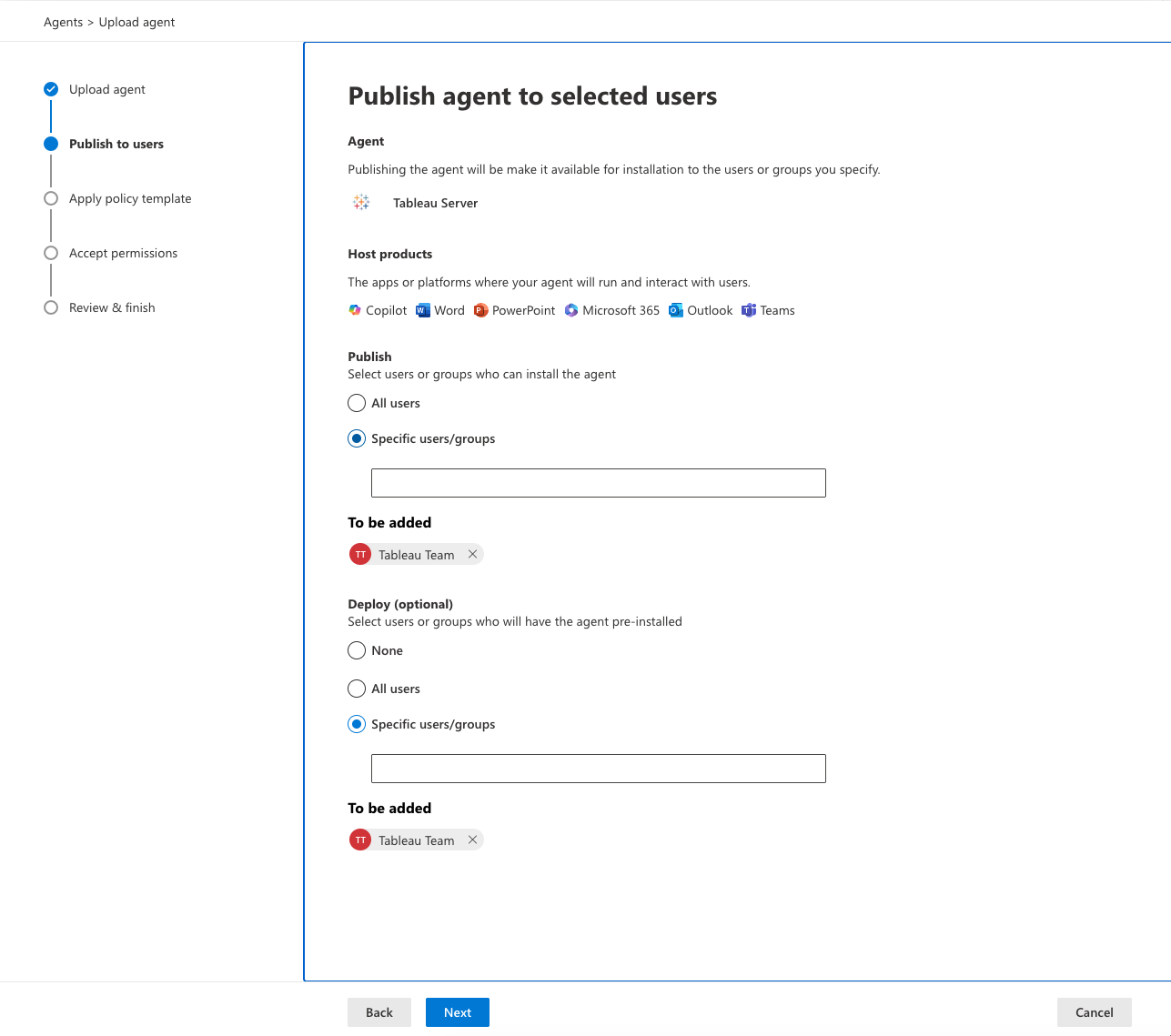
Upload the app package from step 1.1, and specify which users/groups should have access to the addin.
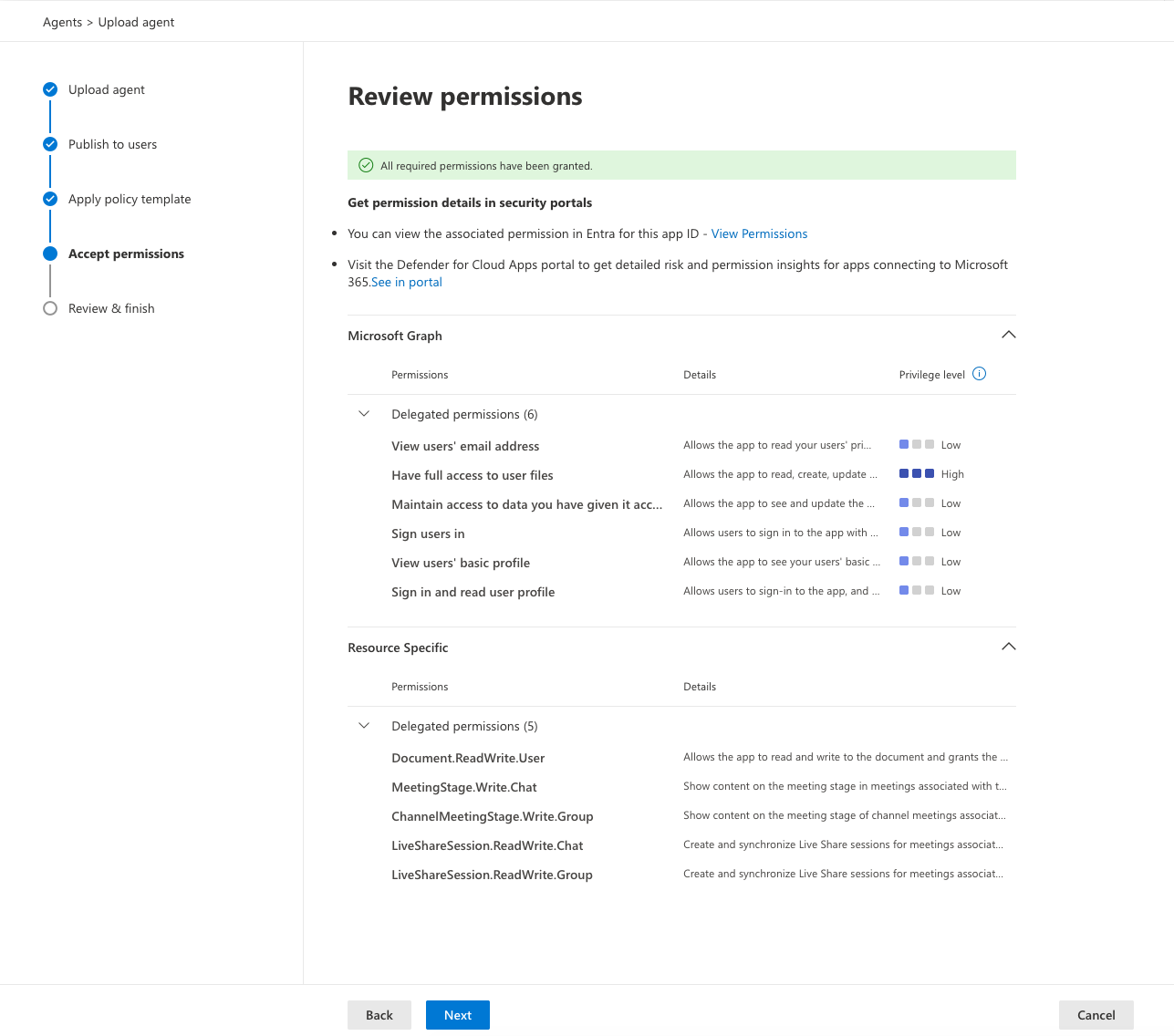
Apply a policy template if desired, and Accept the required permissions2. After doing so, click the Finish Deployment button to complete the installation1.
Step 2: Configure the app to work with your Tableau site(s)
First time setup
When you install the app for the first time, Teams will prompt you to open the app. This brings you to the Tableau app’s Personal tab. Assuming no sites have already been configured for the Teams tenant, you will see a different landing page that prompts you to enter some authentication details. If you open the app from Microsoft Word or Powerpoint (instead of Teams) you will see a similar Initial Setup page. The Teams app and Office addin use the same site configurations, so if you add a site in Teams it will also work in Office (and vice versa).
If you are using Tableau Server and want to use the default site, leave the site name input field blank.
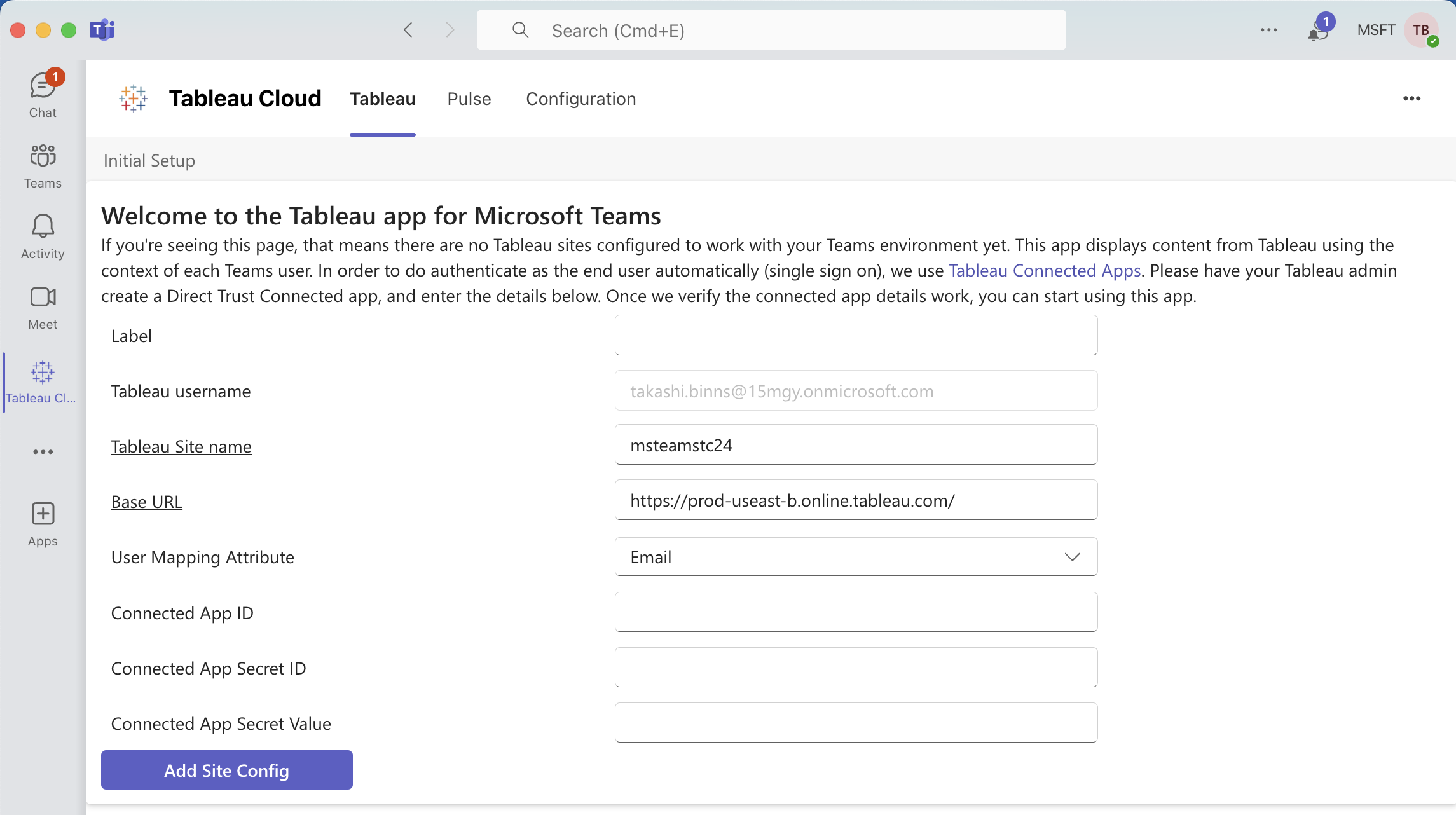 Use the below documentation to create a direct trust connected app in Tableau, and enter those details into this form.
Tableau Cloud: Create Direct Trust Connected App
Tableau Server: Create a Direct Trust Connected App
When you click the Add Site Config button, the Tableau app will verify your connected app details actually work before saving them. It uses the connected app details to create a JWT and tries to authenticate to the Tableau site using an attribute of your Microsoft Entra user profile.
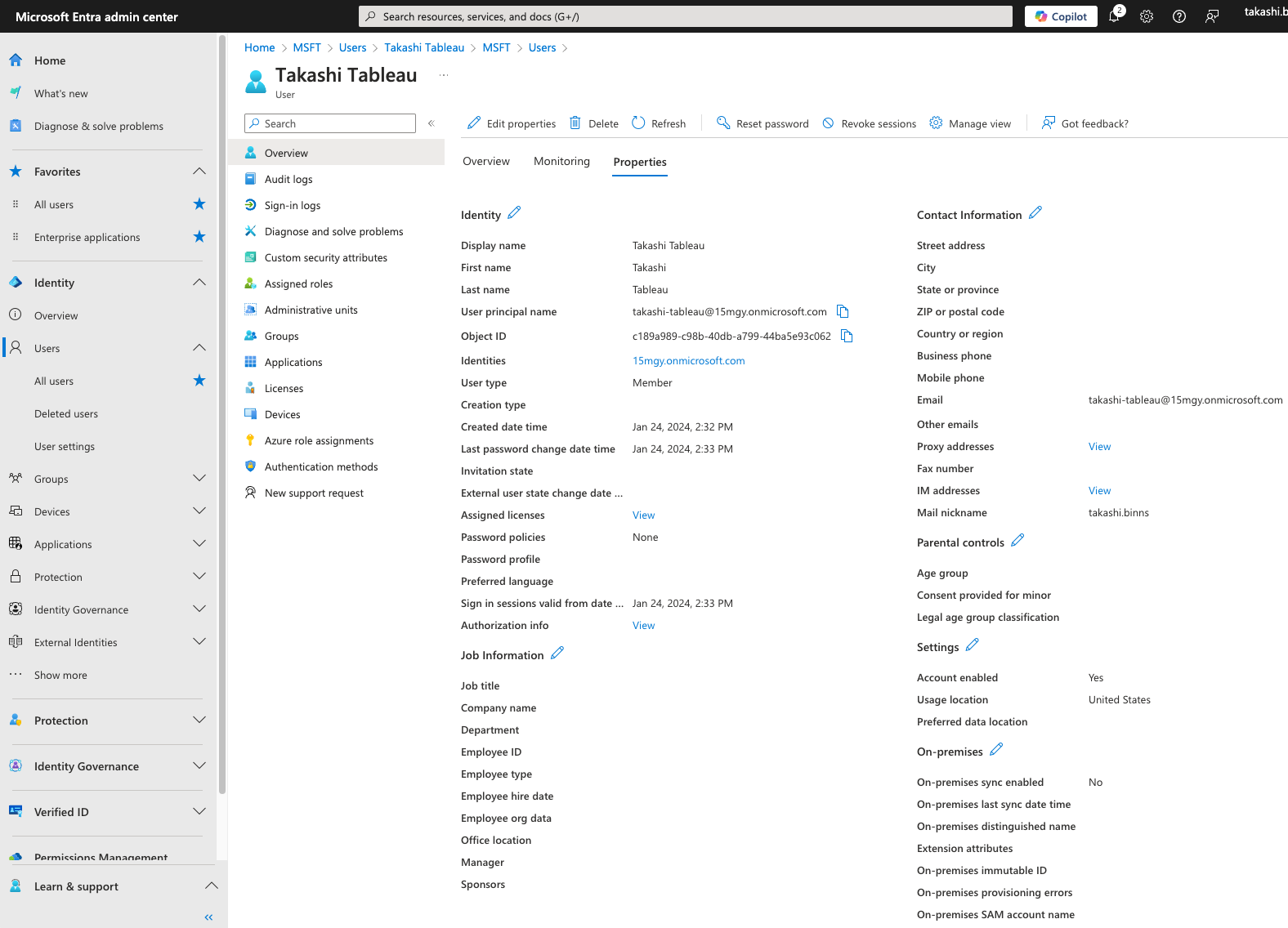
There are a few options for the User Mapping Attribute.
Attributes from the Microsoft Teams SDK:
- Preferred_Username: The Teams user’s email address, from the Teams SDK. In some cases, this value can differ from the email defined in Microsoft Entra.
- User Principal Name: This is the primary way users login to Microsoft Entra
Attributes from the user’s Microsoft Entra profile:
- Primary Email: This corresponds to the
user.mailattribute, and represents the user’s Email address - Mail Nickname: This corresponds to the
user.mailNicknameattribute, and represents an alias for th user. - Employee ID: This corresponds to the
user.employeeIdattribute, and represents an employee identifier assigned by the organization. - On-premise Distinguished Name: This corresponds to the
user.onPremiseDistinguishedNameattribute, and represents the distinguished name (DN) synced from an on-premise Active Directory. - On-premise user principal name: This corresponds to the
user.onPremiseUserPrincipalNameattribute, and respresents the userPrincipalName synced from an on-premise Active Directory. - On-premise SAM Account Name: This corresponds to the
user.onPremiseSamAccountNameattribute, and represents the samAccountName synced from an on-premise Active Directory. - Extension Attribute X: Microsoft Entra allows adding up to 15 extra attributes to a user’s Entra profile. These options are there for when your Tableau username does not exist anywhere else in Microsoft Entra. You can use an extension attribute to store the Tableau username for each Entra user, and then select this option in the Teams app.
If the Tableau authentication API call fails OR returns your Tableau user role as something other than Server/Site Admin, it won’t let you continue. This is to ensure only a valid Tableau admin is creating the connection. Don’t forget to enable the connected app in Tableau, otherwise the connectivity test will fail.
In general, we recommend not specifying an allow-list of domain because it applies only to the Embedding API. REST API calls (used for authenticating, getting view/metric metadata, and preview images) will not respect the domain allow list. If you really want to specify some domains to allow-list within the connected app, use the domains listed below:
tableau-ms-teams-prod-gycea7csh5hsbfh5.a02.azurefd.net
teams.microsoft.com
*.teams.microsoft.com
teams.cloud.microsoft
*.teams.cloud.microsoft
*.sharepoint.com
The first domain is where our app service is hosted, the next 4 cover Microsoft Teams, and the last one covers Word/PPT files (since they are stored in SharePoint). You may need to specify additional domains, if you are using the app in other platforms (outlook, m365, etc). Microsoft provides a list of domains for their platforms here.
Click on the below image, to watch our getting started video on YouTube:

Managing your sites
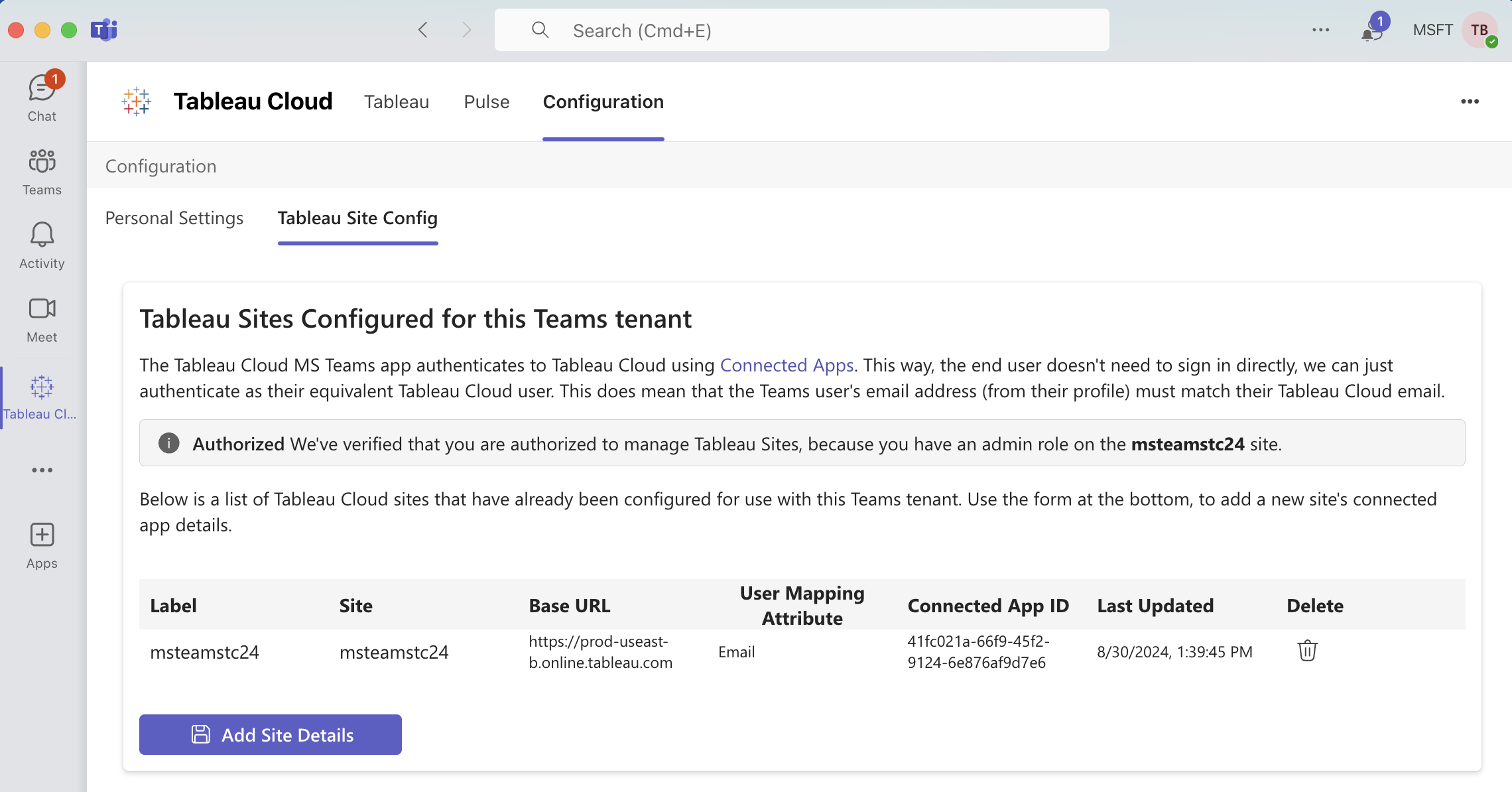
Once your app has been configured for 1 or more sites, you can always get back to the site manager by using the Configuration tab within the Personal App. This page verifies that you are a Tableau admin, and then shows a list of any connected apps already setup. You can add or delete connected apps using this page. We’ve limited the app to just a single connected app per Teams tenant + Tableau site.
Notes
-
Note that the deployment of Office addins can take some time (usually 10-15 minutes, but up to 72 hours) before appearing for end users. This also applies to updating/removing Office addins. ↩ ↩2
-
Note that the privilege level for this addon’s permissions will appear as high. This is due to the
Document.ReadWrite.Userpermission, which allows us to read and write to a user’s files. This is required to insert and update Tableau images. ↩