Tableau MCP Deployment Guide for Tableau Cloud Customers
This guide provides step-by-step instructions for Tableau Cloud customers to deploy the Tableau MCP server in a self-hosted environment.
Self-hosting Tableau MCP is not required for Cloud customers. Tableau's first-party, hosted MCP
server is available at https://mcp.tableau.com. See Hosted Tableau MCP
for more details.
Overview
The Tableau MCP server is a lightweight Node.js web application that uses Express and the official TypeScript SDK for MCP servers. It is capable of handling multiple HTTP requests from clients and communicates with them using the Streamable HTTP MCP transport.
Self-hosting the Tableau MCP server means deploying the web application in an environment capable of being accessed by multiple users simultaneously, similar to any other web application.
Prerequisites
Before beginning the deployment process, ensure the following prerequisites are met:
- Operating System: Any operating system that is capable of running Docker or Node.js 22.7.5 or
higher.
- Node.js: Install Node.js 22.7.5 or higher. Not required if using Docker or a Node.js Single Executable Application.
- SKU: Tableau MCP is a lightweight, self-contained Node.js web application that should not require a large or expensive SKU. You should do capacity planning based on your needs but something like an EC2 T4g small instance, Heroku Standard-2X dyno, or Azure Standard_B2als_v2 should be sufficient.
- Network Access: Ensure the MCP server machine can communicate with Tableau Cloud. The MCP server makes requests to the Tableau Cloud REST APIs so it must be able to communicate with it.
- User Access: This guide steps through running the MCP server over a local address. Exposing it to your users and only your users (e.g. via reverse proxy or tunnel) is left to the reader. Additional necessary precautions are described in the "Network isolation" section below.
- Tableau MCP build: One of the following:
- NPM package
- Docker container
- Node.js single executable application
- The
builddirectory from a local build of the repo or your fork.
Network Isolation
Before making the Tableau MCP server deployment accessible to your users, ensure its network configuration guarantees it can only be accessed by the users you expect. In other words, don't open it up to the Internet, and definitely don't do that with OAuth disabled. Without OAuth, anyone who can make requests to the MCP server can effectively access Tableau data on behalf of the owner of the credential specified in the configuration.
Basic architecture
Deployment Guide
Step 1: Determine your authentication approach
The tools exposed by the Tableau MCP server call the Tableau Cloud REST APIs which require signing in with a Tableau Cloud user. OAuth is the recommended, most secure, and fully supported authentication method for production deployments. It provides per-user authentication and proper authorization scoping, and is the only method designed for general multi-user HTTP deployments. Alternative options are available only for testing, prototyping, or specific licensed scenarios. Using the below decision tree, determine which authentication option is most appropriate.
- Are you configuring a general multi-user HTTP deployment?
- Yes: Use OAuth so Tableau MCP can authenticate each user and make Tableau REST API requests on that user's behalf.
- No, I am testing or prototyping: A Personal Access Token can be used for basic testing, with the concurrency caveat noted below.
- No, I have a licensed and approved usage-based licensing (UBL) scenario: A Direct Trust Connected App may be appropriate. Confirm this with your Tableau licensing and security guidance before using a non-OAuth HTTP configuration.
Step 2: Prepare the Configuration
The MCP server relies on environment variables for configuration. Please set environment variables
however your hosting platform and security model allows. Several examples for common configurations
are provided below and assume the use of a .env file in the working directory for simplicity.
Required Environment Variables
- The
SERVERenvironment variable is always required; the value is the URL of your Tableau Cloud pod on which your Tableau site(s) exist(s) (not the MCP server). - Other required variables depend on your desired authentication mechanism and are as shown in the examples below
Example: Authentication with OAuth (Recommended)
With OAuth enabled, when connecting to the MCP server the first time, each user will be required to sign in to their Tableau Cloud site the same way they would when viewing a dashboard in their web browser. Once a user successfully connects, the MCP server will make its requests to the underlying Tableau REST APIs as the user themself. The Tableau authorization server will issue the MCP client an access token which will be included with each subsequent request when calling MCP tools, where it will be validated before allowing the tool to be executed.
This is the recommended method for all production deployments. It is the only approach that provides proper per-user authentication and authorization scoping.
Environment Variables
SERVER=https://10ax.online.tableau.com
SITE_NAME=MySite

OAUTH_ISSUER=https://sso.online.tableau.com
OAUTH_RESOURCE_URI=https://tableau-mcp.superstore.com
ADVERTISE_API_SCOPES=true
OAUTH_EMBEDDED_AUTHZ_SERVER=false
Example: Authentication with Personal Access Token (PAT) — Testing/prototyping only
PAT-based authentication is not recommended for production deployments. Use OAuth for multi-user HTTP deployments. PATs cannot be used concurrently, so simultaneous requests from multiple clients will fail.
Create a PAT using the instructions provided in Personal Access Tokens - Tableau. All requests made to the MCP server will use the PAT to authenticate to the underlying Tableau REST APIs. PAT-based HTTP configurations are intended for testing/prototyping or licensed and approved UBL scenarios only.
SERVER=https://10ax.online.tableau.com
SITE_NAME=MySite
TRANSPORT=http

AUTH=pat
PAT_NAME=my-pat
PAT_VALUE=AbC...

# When TRANSPORT=http, requiring OAuth is the default
# It must be disabled explicitly to use a different auth mechanism
DANGEROUSLY_DISABLE_OAUTH=true
Example: Authentication with Direct Trust — Licensed/approved UBL scenarios only
Direct Trust with OAuth disabled is not recommended for general deployments. Use OAuth for multi-user HTTP deployments. This configuration is intended only for deployments that are licensed and approved for usage-based licensing (UBL). Confirm with your Tableau licensing and security guidance before use.
Create a Direct Trust Connected App using the instructions provided in Configure Connected Apps with Direct Trust - Tableau. All requests made to the MCP server will use the provided details of the Connected App to generate a scoped JSON Web Token (JWT) and use it to authenticate to the Tableau REST APIs.
SERVER=https://10ax.online.tableau.com
SITE_NAME=MySite
TRANSPORT=http

AUTH=direct-trust
JWT_SUB_CLAIM=username
CONNECTED_APP_CLIENT_ID=211a3762-cd0d-49bf-ae25-be98198bf4f5
CONNECTED_APP_SECRET_ID=43a6eeac-eb2f-4f3e-9af9-3cb44fe200fd
CONNECTED_APP_SECRET_VALUE=DeF...

# When TRANSPORT=http, requiring OAuth is the default
# It must be disabled explicitly to use a different auth mechanism
DANGEROUSLY_DISABLE_OAUTH=true
Step 3: Run the MCP Server
Now that the environment variables are set (or your .env file is populated) you can start the
server!
Docker
Replace latest with a
specific version to prevent
auto-upgrading with each launch e.g. 1.17.12
docker run -d --name tableau-mcp --env-file .env -p 3927:3927 ghcr.io/tableau/tableau-mcp:latest
Node.js (NPM package)
Replace latest with a
specific version to prevent
auto-upgrading with each launch e.g. 1.17.12
Command:
npx -y @tableau/mcp-server@latest
Output:
tableau-mcp v1.17.12 streamable HTTP server available at http://localhost:3927/tableau-mcp
Node.js Single Executable Application
Windows command:
tableau-mcp.exe
Linux command:
./tableau-mcp
Output:
tableau-mcp v1.17.12 streamable HTTP server available at http://localhost:3927/tableau-mcp
Node.js (local build)
Command:
node build/index.js
Output:
tableau-mcp v1.17.12 streamable HTTP server available at http://localhost:3927/tableau-mcp
Step 4: Optional configuration
Available tools
Tableau MCP has a lot of tools, some of which may not be necessary for your desired workflows.
- INCLUDE_TOOLS allows you to specify which tools will be made available to your users.
- EXCLUDE_TOOLS allows you to specify which tools should not be made available to your users. All others will be available.
Only one of these environment variables can be specified at a time. Their values are a comma-separated list of tool names, or tool group names. A tool group is a collection of tools. For the list of tools and their groupings, see toolName.ts.
Examples:
-
Datasource querying only.
datasourceis a tool group name that includes all tools for getting datasource metadata and querying the data sources themselves.INCLUDE_TOOLS=datasource -
Exclude Pulse tools and the Get View Image tool. The Pulse tools can be easily excluded using the
pulsetool group. This example also excludes theget-view-imagetool to demonstrate tool groups and individual tools can be provided simultaneously.EXCLUDE_TOOLS=pulse,get-view-image
Tool Scoping
The Tableau MCP server can be configured to limit the scope of its tools to a set of data sources, workbooks, views, projects, or tags. For example, this can be helpful if your sites have hundreds of data sources but you only want a select few to be made available when constructing MCP tool call results.
Each value is a comma-separated list. For more information, see Tool Scoping | Tableau MCP.
Examples:
-
Limit all requests and filter results to content that exists within a specific project and has a specific tag.
INCLUDE_PROJECT_IDS=d87d843b-4326-4ce3-bc50-a68c1e6c9ca5INCLUDE_TAGS=sales -
Only allow clients to query a single data source. The List Datasources tool will only return this specific data source, and if a client attempts to query any other data source it will result in an error.
INCLUDE_DATASOURCE_IDS=2d935df8-fe7e-4fd8-bb14-35eb4ba31d4 -
Only allow clients to query a single workbook. The Get Workbook and List Workbooks tools will only return information about this specific workbook.
INCLUDE_WORKBOOK_IDS=222ea993-9391-4910-a167-56b3d19b4e3b
Telemetry
Service Telemetry
Tableau MCP uses a plugin architecture that allows you to provide your own telemetry provider to record service level metrics and latency observations.
-
Create a class that implements the TelemetryProvider interface. Tableau MCP will import it dynamically at runtime.
-
Set environment variables:
TELEMETRY_PROVIDER=customTELEMETRY_PROVIDER_CONFIG='{"module":"./path/to/my-telemetry-provider.js"}'
Product Telemetry
By default, Tableau MCP will send basic product data to Tableau's telemetry endpoint for each tool
call. This is on by default for the web and Desktop variants. Each event includes the tool name,
request ID, session ID, site and user LUIDs, the Desktop chat ID, a timestamp, success, an error
code, an error message (the tool's error text on web, only an error type on Desktop), the auth type,
the OAuth client, the server URL, the machine's hostname (web only) and whether the deployment is
Hyperforce. The full field list per variant and the variables that control it
(PRODUCT_TELEMETRY_ENABLED, PRODUCT_TELEMETRY_ENDPOINT, IS_HYPERFORCE, TABLEAU_POD_NAME and
the Desktop launcher variables) are in
Environment variables.
To disable this, set PRODUCT_TELEMETRY_ENABLED=false. Alternatively, you can block outbound
traffic to Tableau's telemetry endpoints as described in
Basic Product Data - Tableau.
Server Logging
By default, Tableau MCP sends notifications to MCP clients containing the request and response traces for each request Tableau MCP tools make to the Tableau REST APIs. Many clients will save these notifications to their own log files, but if you need a way to gather and audit these traces, server-level logging can be enabled. See ENABLED_LOGGERS for more information.
ENABLED_LOGGERS=fileLogger
FILE_LOGGER_DIRECTORY=D:\logs
OAuth + alternate authentication
When OAuth is enabled by providing a value for the OAUTH_ISSUER, users must first sign into their
Tableau Cloud site to access the MCP server. By default, the MCP server will then make its requests
to the underlying Tableau REST APIs on behalf of the user themself. It is highly recommended to
rely on this default behavior, however it can be configured if deemed unnecessary or undesirable
for your workflow.
The AUTH environment variable can still be set to any of the non-OAuth authentication mechanisms,
e.g. direct-trust. In the below example, the MCP server will still be protected from unauthorized
access by OAuth—requiring users to first sign in to their Tableau site—but the user and site context
will be mostly* ignored from then on by the MCP server. Authentication to the underlying REST API
requests will use the Direct Trust Connected App instead. For OAuth-backed per-user access, set the
generated JWT's sub claim to the signed-in Tableau user with JWT_SUB_CLAIM={OAUTH_USERNAME}. A
hard-coded sub claim should only be used for deployments that are licensed and approved for that
usage-based licensing (UBL) pattern.
SERVER=https://10ax.online.tableau.com
SITE_NAME=MySite

OAUTH_ISSUER=https://sso.online.tableau.com
OAUTH_RESOURCE_URI=https://tableau-mcp.superstore.com
ADVERTISE_API_SCOPES=true
OAUTH_EMBEDDED_AUTHZ_SERVER=false

AUTH=direct-trust
JWT_SUB_CLAIM={OAUTH_USERNAME}
CONNECTED_APP_CLIENT_ID=211a3762-cd0d-49bf-ae25-be98198bf4f5
CONNECTED_APP_SECRET_ID=43a6eeac-eb2f-4f3e-9af9-3cb44fe200fd
CONNECTED_APP_SECRET_VALUE=DeF...
Testing Tableau MCP
You've got Tableau MCP deployed but now you want to test it.
Step 1: Make a basic request
The requests MCP clients make to MCP servers are generally POST requests, so if you make a GET request (e.g. from the web browser) to http://127.0.0.1:3927/tableau-mcp, you'll see a message like:
{
  "jsonrpc": "2.0",
  "error": {
    "code": -32000,
    "message": "Method not allowed."
  },
  "id": null
}
This means the MCP server is indeed running, but simply rejecting the GET request.
MCP clients initiate the client-server handshake with an Initialization POST request that looks like this:
curl --request POST \
  --url http://127.0.0.1:3927/tableau-mcp \
  --header 'accept: application/json, text/event-stream' \
  --header 'content-type: application/json' \
  --data '{
  "jsonrpc": "2.0",
  "id": 1,
  "method": "initialize",
  "params": {
    "protocolVersion": "2025-11-25",
    "capabilities": {},
    "clientInfo": {
      "name": "ExampleClient",
      "title": "Example Client Display Name",
      "version": "1.0.0"
    }
  }
}'
When OAuth is not enabled, the response will look like this, which provides server metadata and capabilities to the client:
{
  "result": {
    "protocolVersion": "2025-11-25",
    "capabilities": {
      "logging": {},
      "tools": {
        "listChanged": true
      }
    },
    "serverInfo": {
      "name": "tableau-mcp",
      "version": "1.17.17"
    }
  },
  "jsonrpc": "2.0",
  "id": 1
}
When OAuth is enabled, the response will look like this. This response includes clues that MCP clients understand to mean "Hey, you have to sign in first!"
{
  "error": "unauthorized",
  "error_description": "Authorization required. Use OAuth 2.1 flow."
}
If you need a basic health check endpoint, you can make a Ping request (which does not require any authentication) and mirrors the request body in its response:
curl --request POST \
  --url http://127.0.0.1:3927/tableau-mcp \
  --header 'accept: application/json, text/event-stream' \
  --header 'content-type: application/json' \
  --data '{
  "jsonrpc": "2.0",
  "id": "1",
  "method": "ping"
}'
Step 2: Connect your agent
This depends on your agent, but add the MCP server URL in the agent's MCP configuration file or settings UI.
When OAuth is not enabled, the agent will connect immediately and list the available tools:
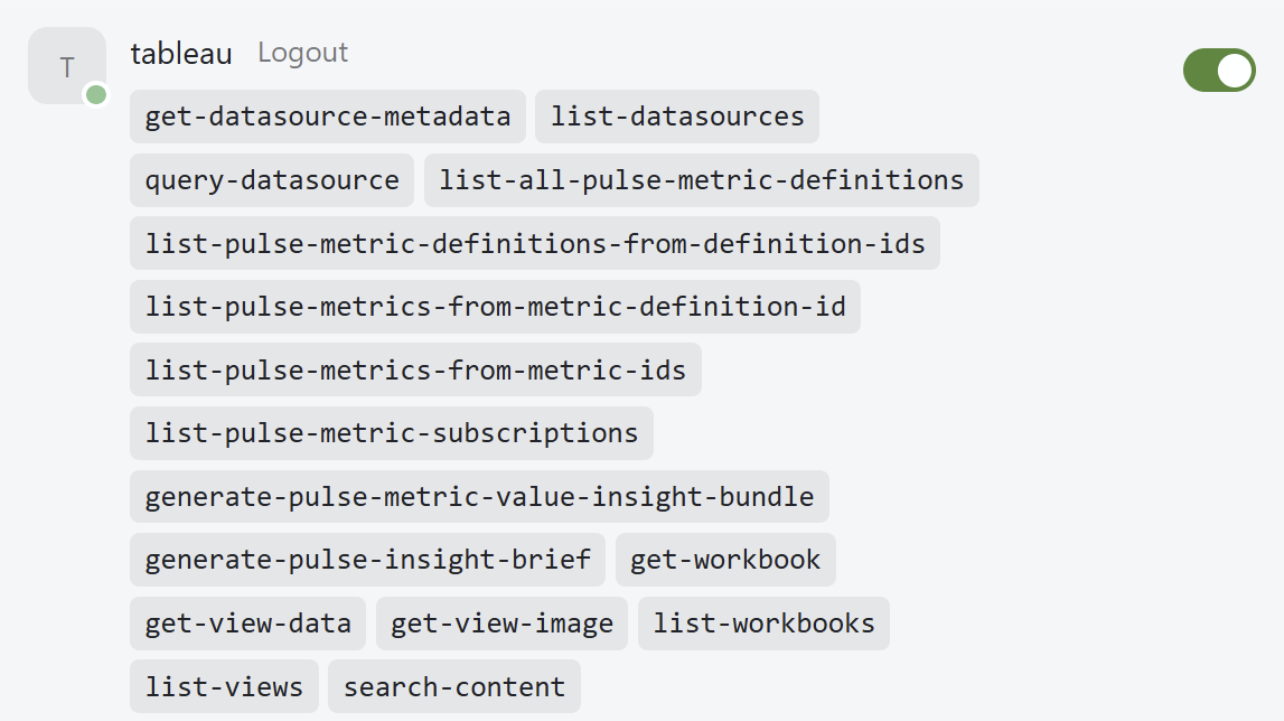
When OAuth is enabled, the agent will inform the user that they need to authenticate to the MCP server first:

Clicking Connect will prompt the user to sign into the site and once they do, the agent will be fully connected to the MCP server and display the list of available tools. If you encounter any issues during the sign in process, this suggests a misconfiguration of the OAuth environment variables. The easiest way to debug exactly what is wrong is to use an MCP OAuth debugger like the one in MCPJam. It steps through each individual step of the OAuth process and can help pinpoint issues like a misconfigured OAuth issuer URL or mismatched protected resource URI. Please don't hesitate to create an issue on the repo if a bug is suspected!
Step 3: Ask questions about your data!
For the purposes of verifying the functionality of the MCP server, please temporarily disable any other installed MCP servers that may conflict, and make a basic prompt in your agent.
"List my Tableau datasources" is a simple example prompt that should help verify all the pieces are working.
- If you see the model choose and call the
list-datasourcestool and successfully return a list of the published data sources on your site, all is well! - If the tool returns a 401 authentication error, that means there is an issue with the
authentication configuration.
- Is the PAT expired?
- Is the Connected App enabled on the site?
- If the tool returns some other error, this could indicate a Tableau Cloud misconfiguration or a runtime issue.
- If you see the model fail to choose or execute the tool, this suggests the model may not support tool calling or the model is weak.
Additional considerations
Passthrough authentication
Passthrough authentication is a special mode that enables enterprise gateway or proxy deployments where users authenticate via Kerberos, OIDC, or other mechanisms and the proxy forwards a valid Tableau REST API token to the MCP server. When enabled, authentication to the MCP server acts similarly to the Tableau REST APIs. The same X-Tableau-Auth header used to authenticate to the Tableau REST APIs can also be used to authenticate to the MCP server.
For more information and precautions, see Passthrough Authentication | Tableau MCP.
ENABLE_PASSTHROUGH_AUTH=true
Disable service temporarily
If you need to temporarily disable the service for any reason, you can set
BREAK_GLASS_DISABLE_GLOBALLY
to true. The MCP server will continue to handle requests but all tool calls will return an error.