tableau-app-msft-teams
How to use the App
This document describes how to use the Tableau app within Microsoft Teams
The Tableau app is available as an Teams app for Microsoft Teams. The app allows you to access Tableau through the Personal App, Channel tabs, Messages, and during meetings.
Personal App
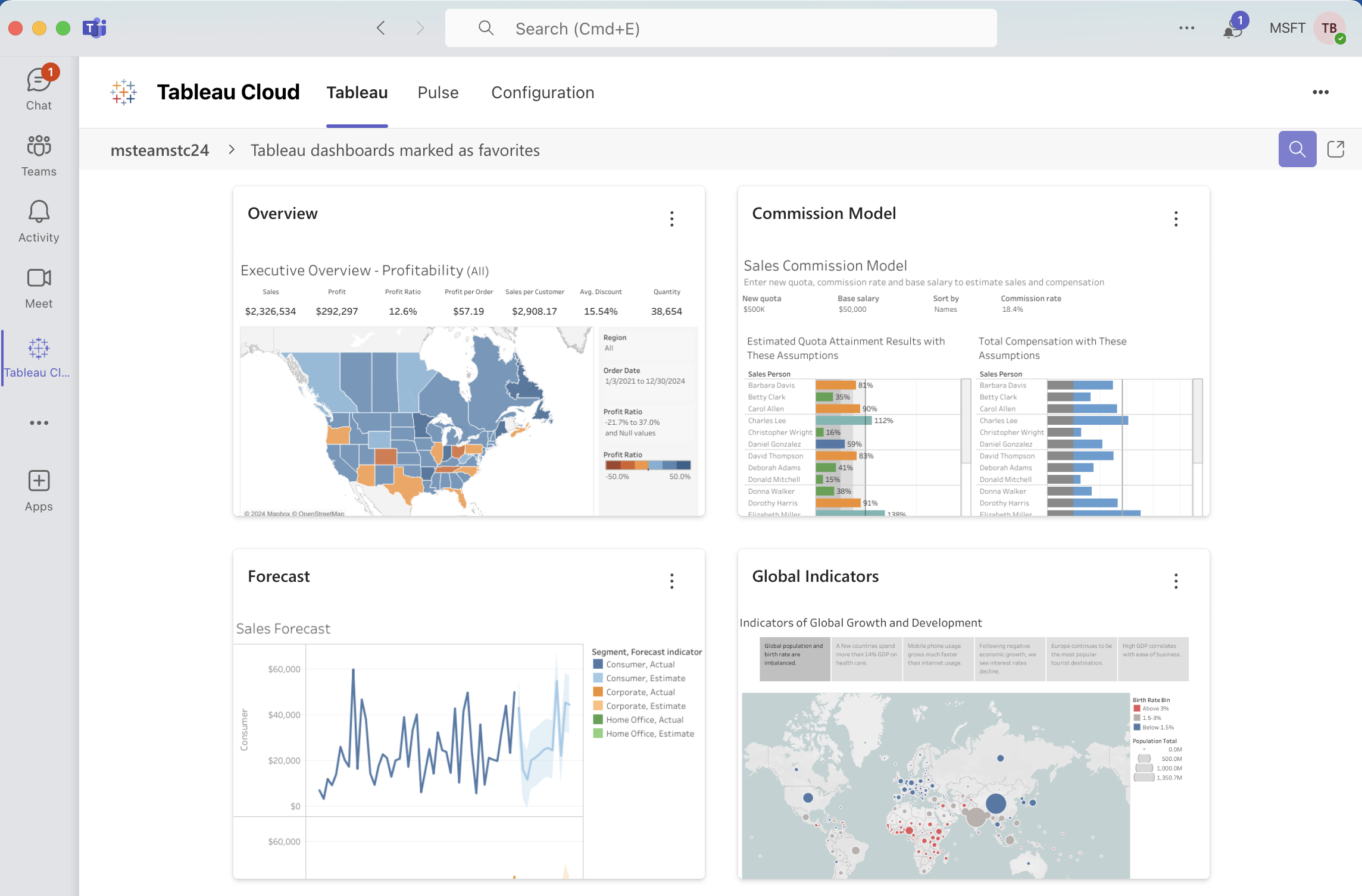
Personal apps live in the left navigation bar, and are tailored to the logged in user. When you open the personal app you will default to the Tableau tab, which will show you the dashboards you’ve marked as favorites in Tableau. Keep in mind that many object types can be marked as favorites in Tableau, and this app is only showing views (not workbooks). Each card on the page represents a Tableau view, and includes the title and a preview image. If you are looking for a view that is not marked as a favorite, you can always use the purple Search button at the top right. Clicking on the image will take you to the fully embedded version of the view.
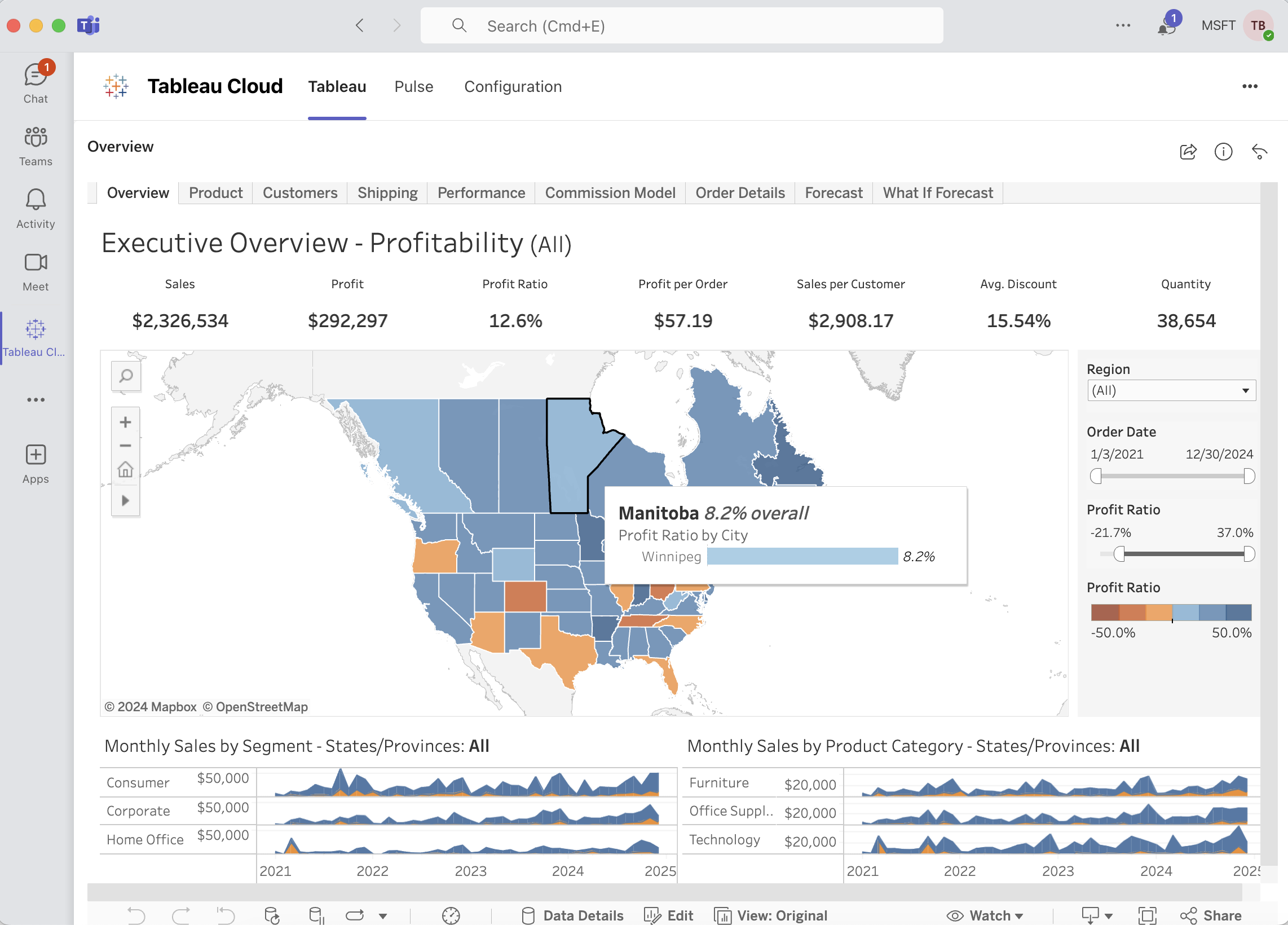 Here, you can interact with the view like you would directly in Tableau. There is a Share in Teams button at the top right, which lets you share this view with a person, group chat, or channel. If you want to go back to the main page, there is a back button at the top right.
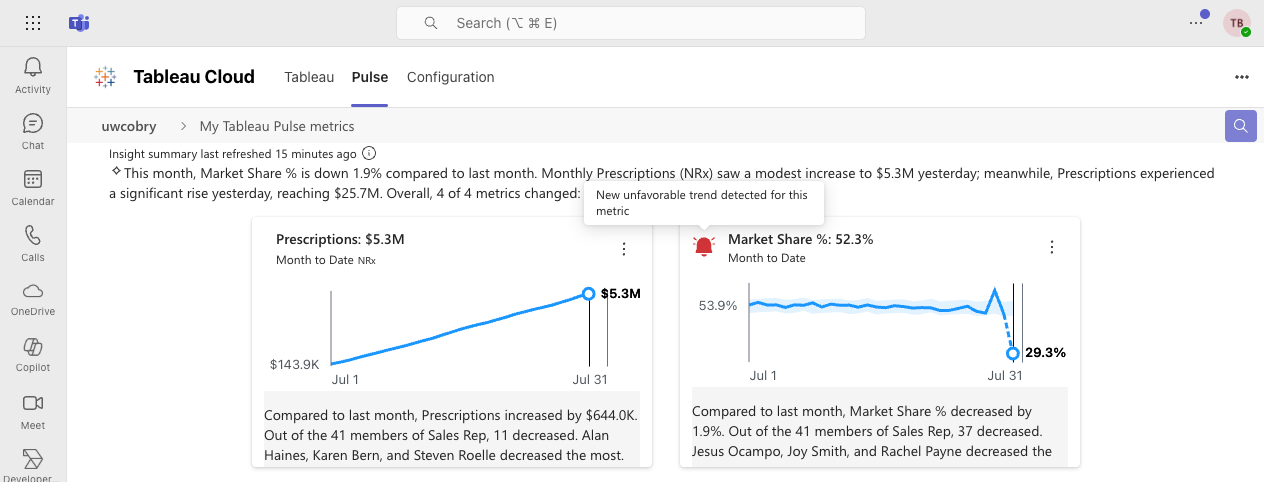
The Pulse tab (available only for the Tableau Cloud version of the app), will get any Pulse metrics you’ve subscribed to and embed them into the page as cards. Similarly, you can use the purple Search button to search for additional pulse metrics and click on a given metric to view the fully interactive embedded version of Pulse. There is also a Share in Teams button for quickly sharing your metric with another person, group chat, or channel.
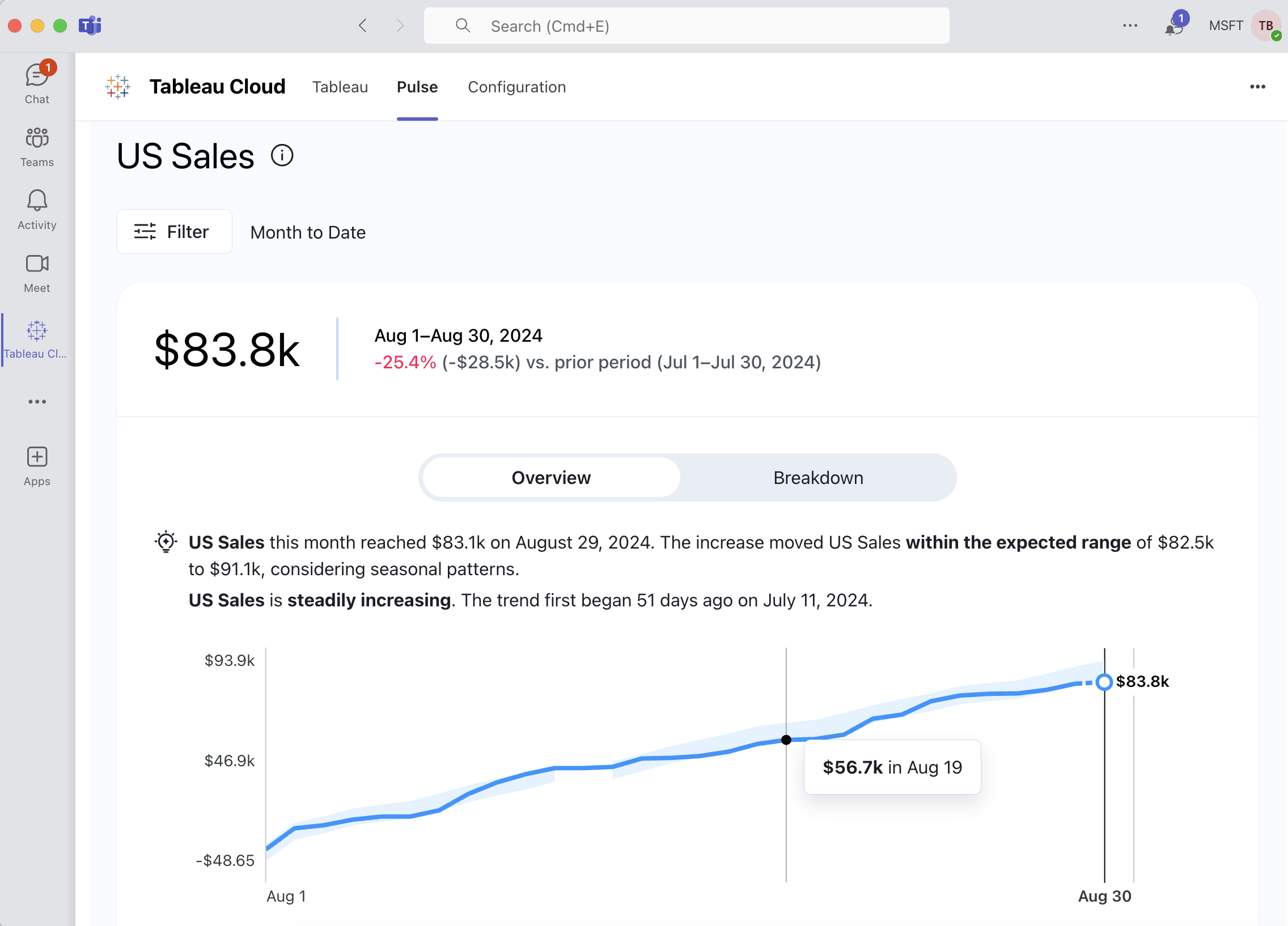
When viewing the embedded Pulse metric, there is also a subscribe button at the top right. This lets you subscribe/unsubscribe to metrics you may have found via search.
Channel Tab
Channel Tabs are web apps that you can “pin” to a channel, personal chat, group chat, or meeting. For example, channels have a Plus button at the top.
 Clicking here will open the app selector, where you can select the Tableau app for Teams. After adding the app, you will get prompted to select the content you want to display. You can select up to 1 view and 5 Pulse metrics per tab. More than this would start to get cluttered, so instead you should add multiple tabs instead. If you want to pin a custom view to a channel tab, copy and paste it’s URL into the search UI.
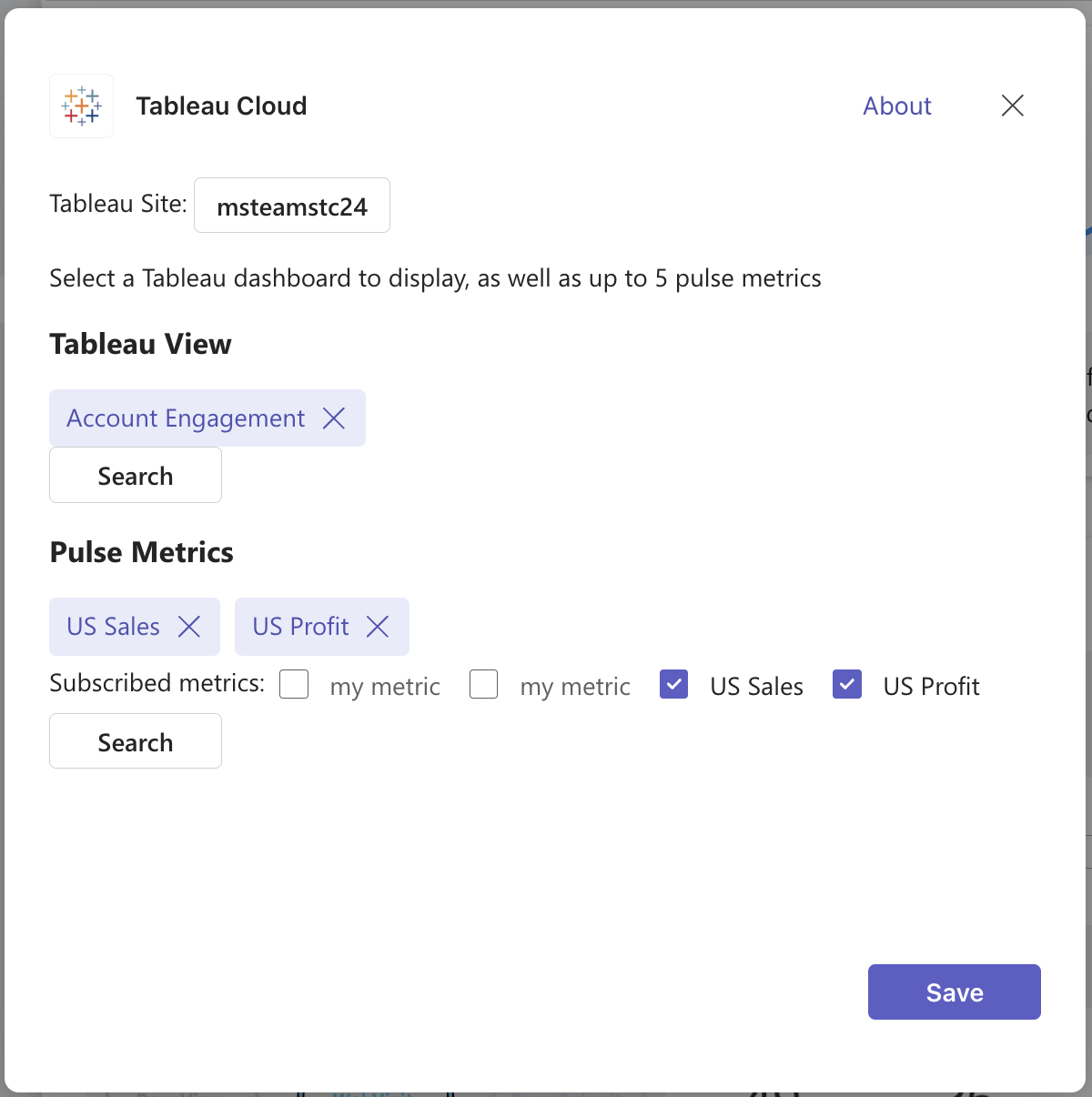
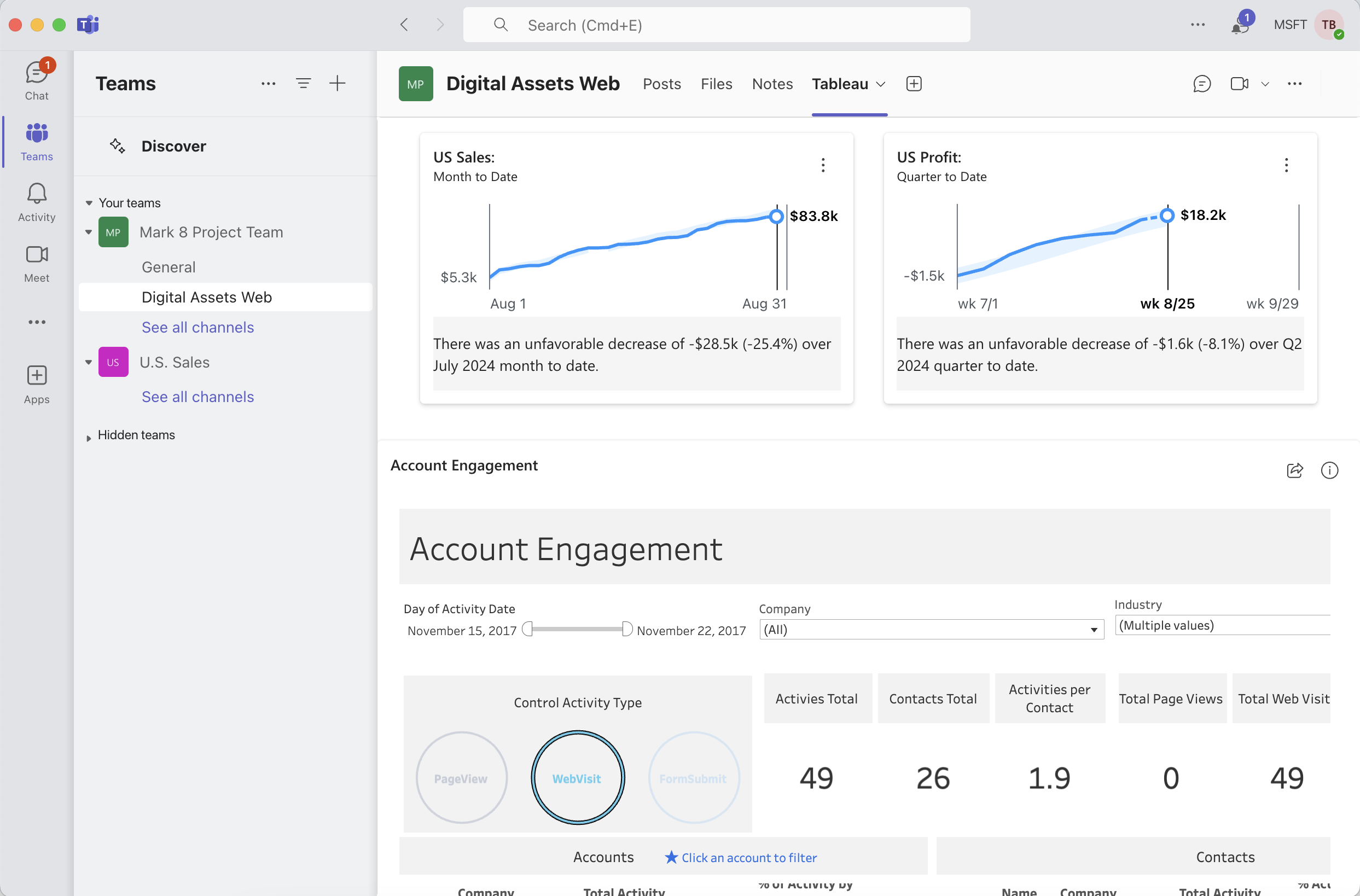
Once you’ve saved your selection, you will see your content rendered as a new tab in the channel. Each tab will default to the name “Tableau”, but you can adjust this by using the Rename button in the tab’s dropdown menu. Pulse metrics you selected will be rendered as cards, but you can click on them to view the fully embedded version of Pulse.
Despite the name, Channel Tabs can be used in places other than channels. For example, you can add channel tabs to Meetings. There is actually a very specific path you need to follow in order to add 3rd party apps to a meeting in Teams.
First, create the meeting using either the Meeting or Calendar apps. You can’t add 3rd party apps during the creation of the meeting, instead find the newly created meeting in your Calendar app and click Edit. Now you should see a Plus button at the top, where you can select the Tableau app. You will get the same configuration popup as any other channel tab, and once you click save you will see your content as another tab within the meeting.
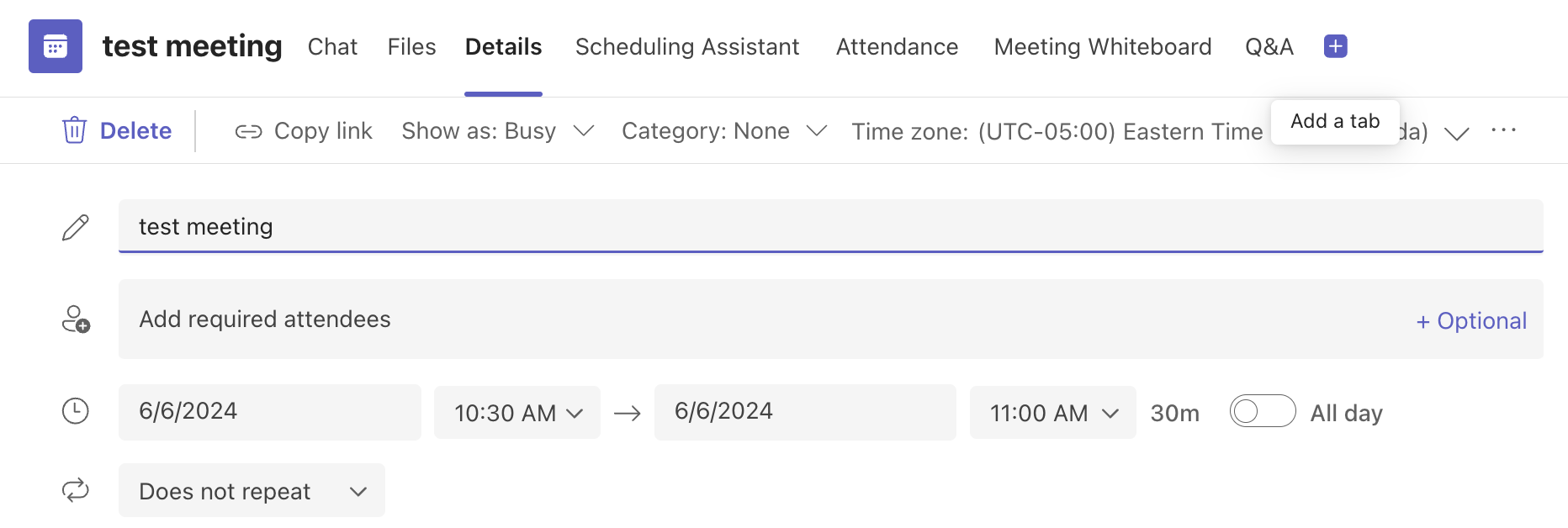 Alternatively, you could use the Meeting app’s Meet Now button to start a new meeting. Once the meeting has started, you should see the Plus button to add the app.

Note that using the Meet Now button from a channel does not allow for any 3rd party apps
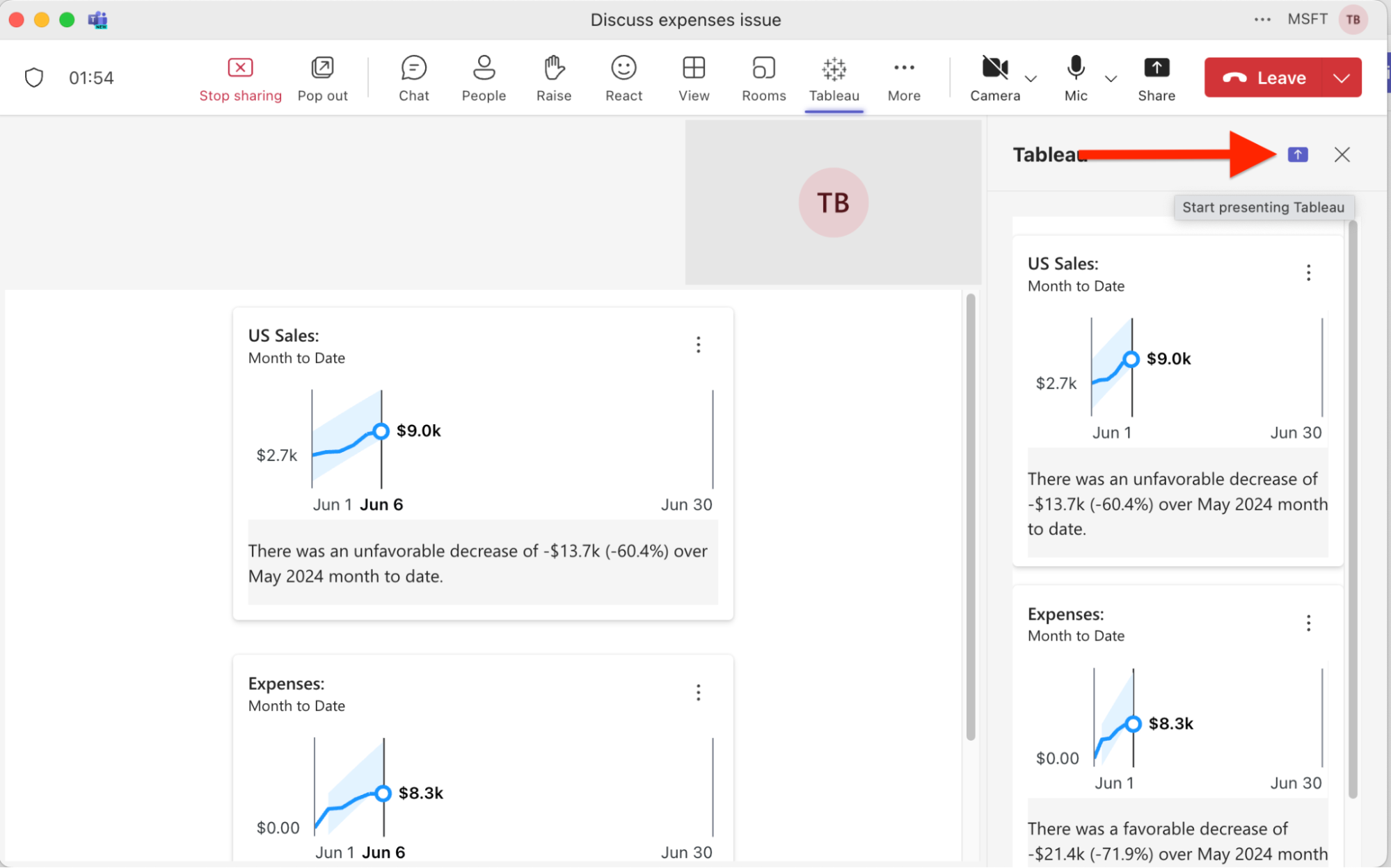
Once you’ve started a meeting and have the Tableau app configured, you should see the Tableau icon at the top. Clicking here will open the channel tab (with content you selected) in the side-panel. This is visible only to you so far.
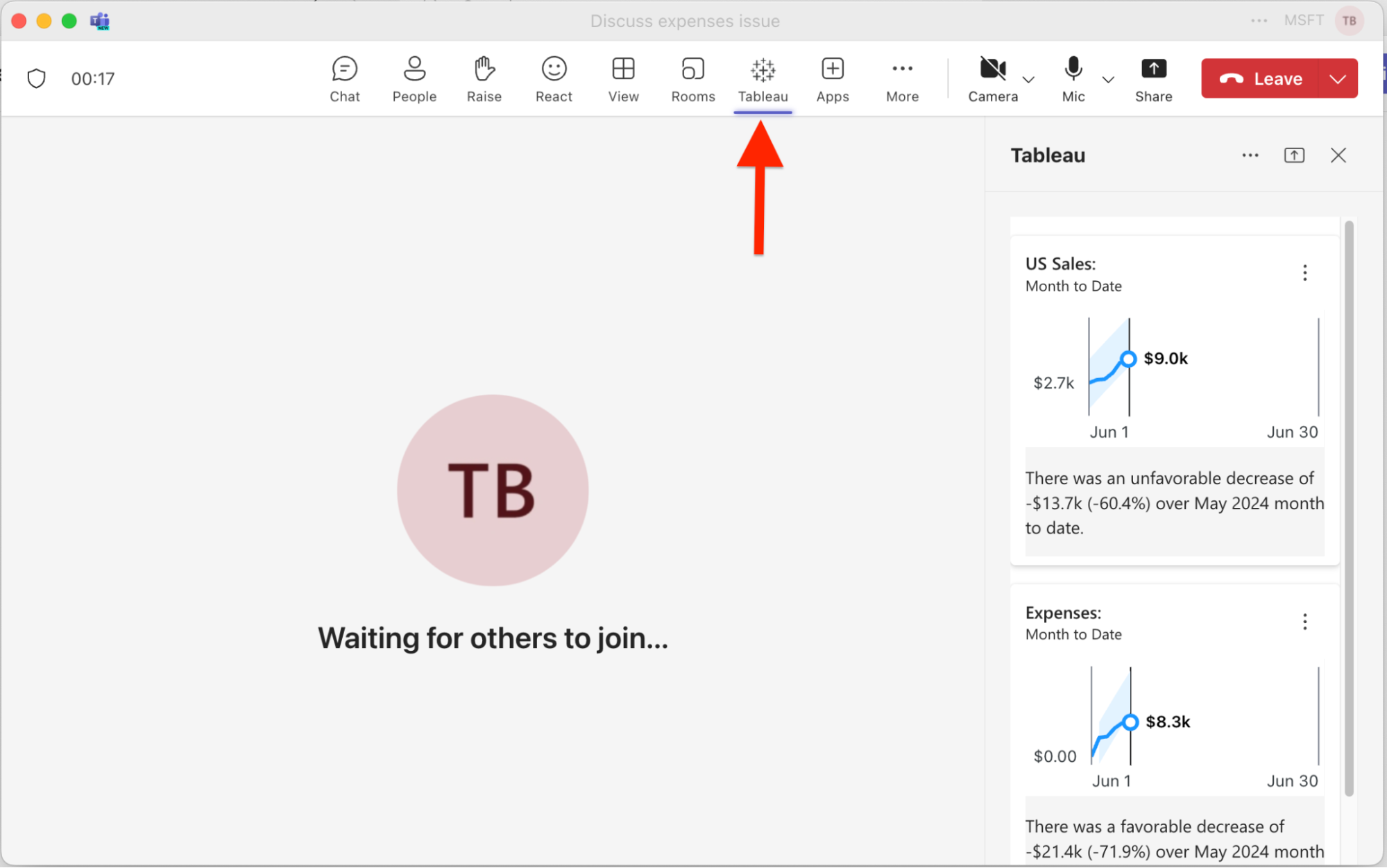
Clicking the purple Share button will push the channel tab’s content to Stage View. This means anyone on the call will be able to view the content as you interact with it. Keep in mind this is similar to a screen share, in that tableau content is being loaded using your user identity. So even if there is row-level security on the dashboard you are sharing, everyone is seeing it exactly how you see it.
Message Extension
Message Extensions allow you to incorporate 3rd party content when writing messages. This can be surfaced in many places within Teams, but generally it’s anywhere you see a message compose box or chat window
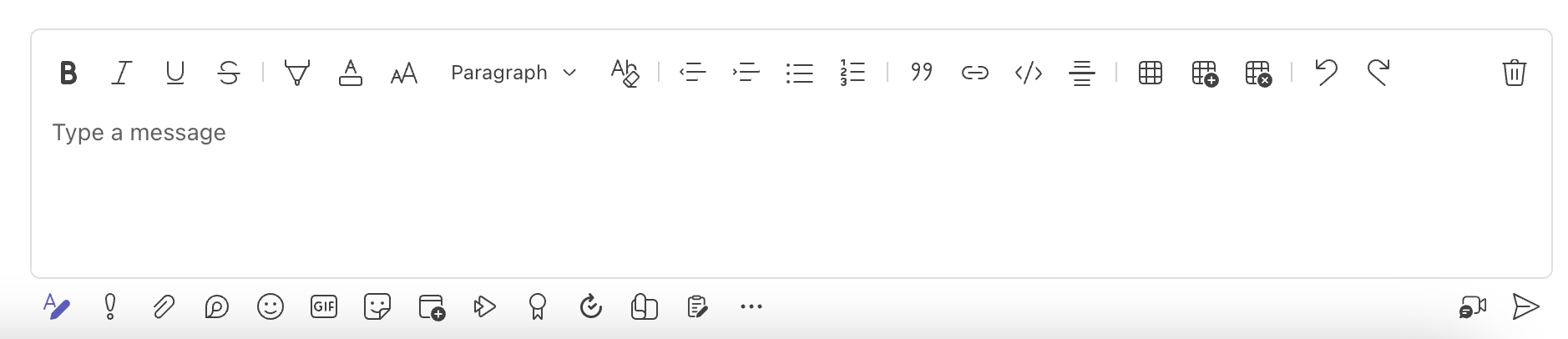
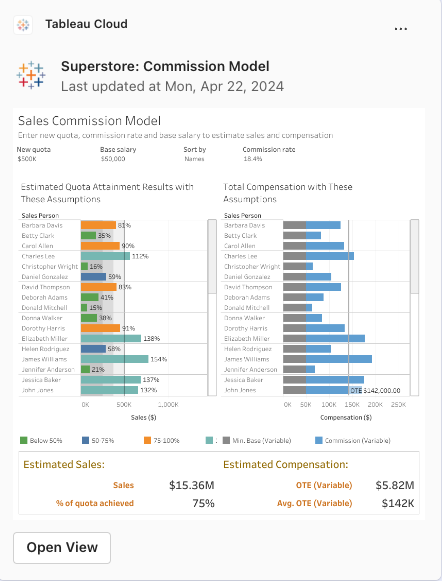
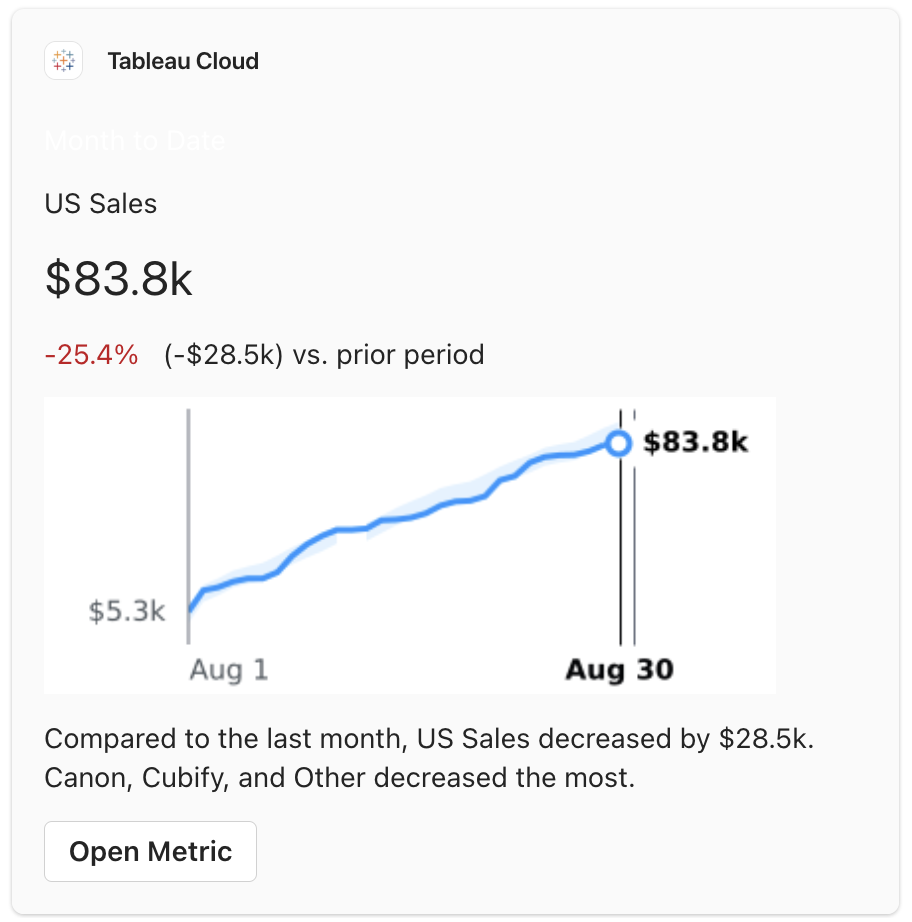
The Tableau App for Teams includes 2 ways to include Tableau content. First, you can copy/paste the URL1 for any tableau view or pulse metric into the compose box and it will get unfurled automatically into an Adaptive Card. You may have seen this already, when using the Share in Teams button. It’s the same idea, the URL for your Tableau content just gets unfurled automatically into an adaptive card.
Adaptive cards are how all 3rd party content gets rendered within Teams chats/channels, and it generally includes some text and an optional image. In our case, we embed an image of the dashboard/pulse metric along with some metadata. There’s also a button at the bottom of each card, which will open up the view/metric within the personal app.
If you don’t have the URL for your view/metric, you can also search for the content you want to embed. Click on the plus button (actions and apps), and select the Tableau app.
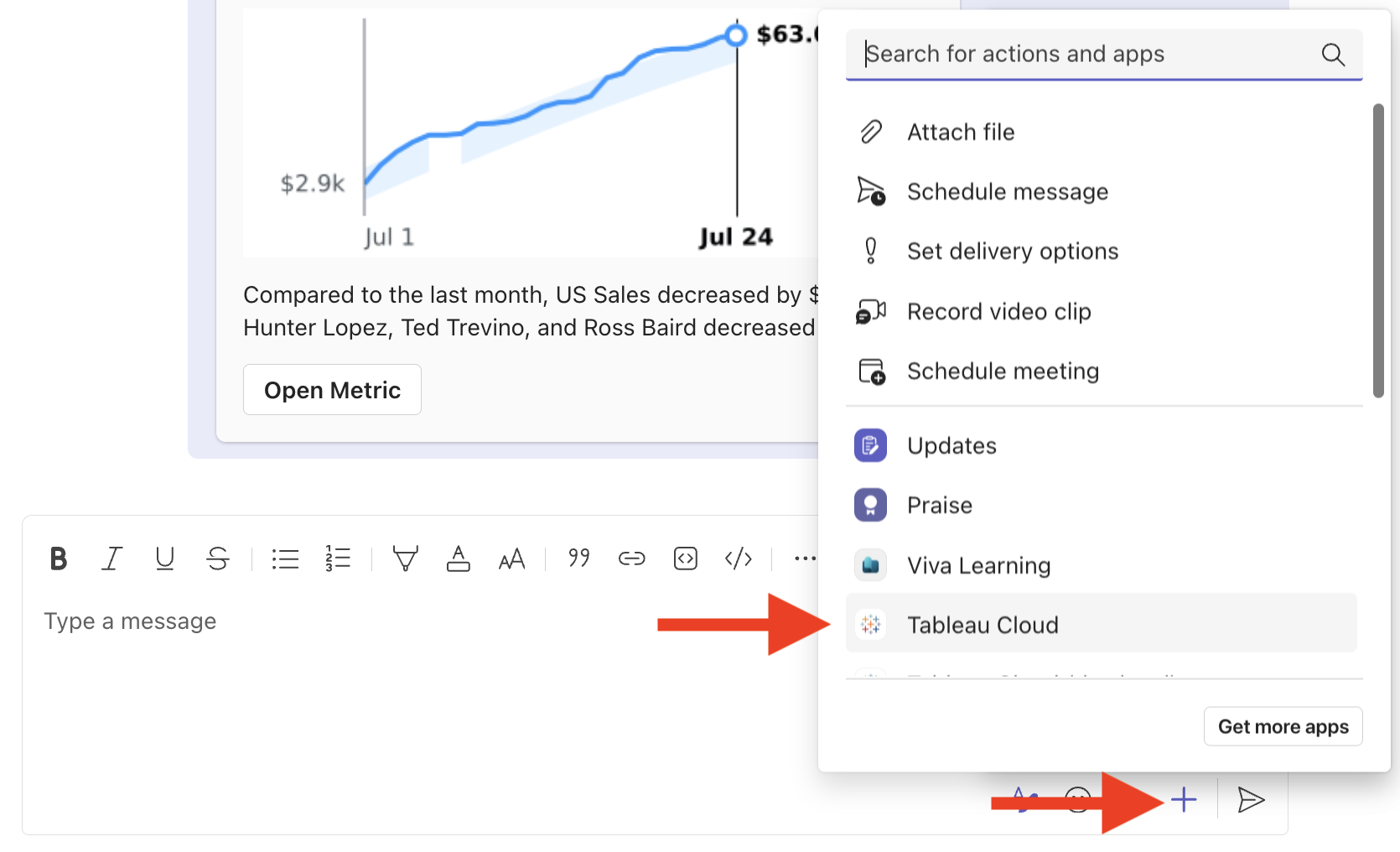
This will bring up a modal window where you can search for either a View or Pulse Metric.
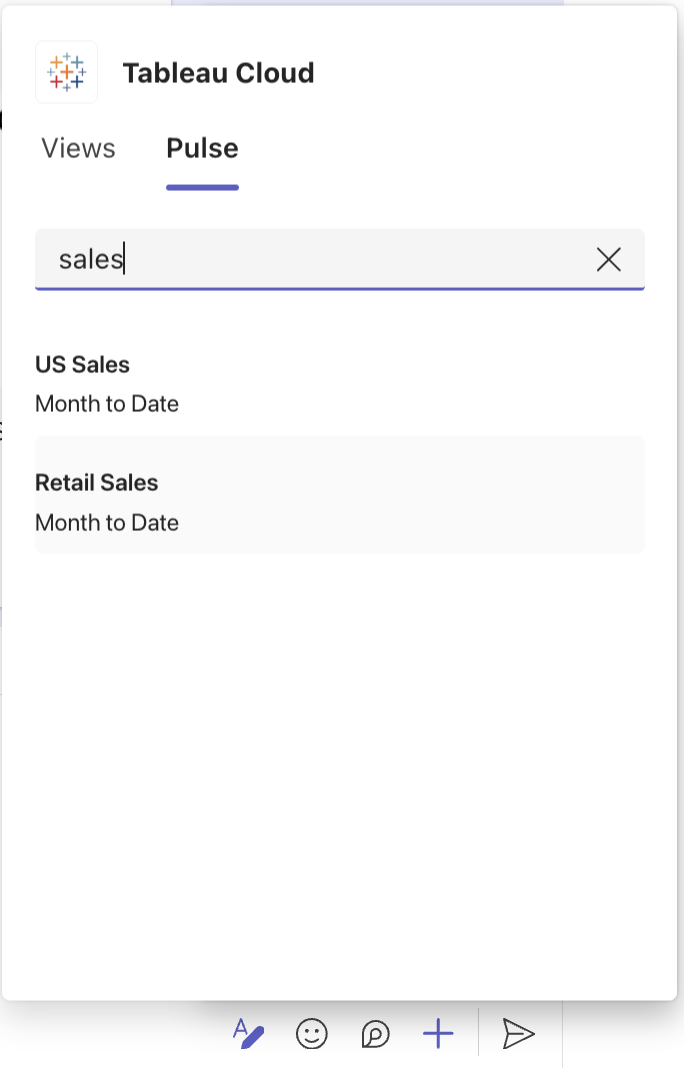
Selecting a view/metric from this list will generate an adaptive card for your selection. Note that clicking on an item triggers several API calls to Tableau behind the scenes in order to get the content & image for that card, so it may take a second or two to generate. If you click more than once, you will end up with multiple cards being created.
-
The URL can be copied a few different ways. You can copy/paste the URL from your browser window or use the link from the Share button. This also works on custom views. Pulse metrics don’t have a share button, so just copy/paste the URL from the browser window. ↩